How to define a workflow
- 100%
- 6.0.2
- Enterprise
- Community
Planned
Overview
Defining workflows in Sense/Net is a simple and straightforward process which can be easily done, if you are familiar with the concepts behind our Workflow infrastructure. The workflow functionality in Sense/Net is built on Windows Workflow Foundation 4.0, so the creation of a workflow always starts with the creation of a Workflow Activity in Visual Studio 2010. Once the XAML file (generated from an Activity) is in your hands, only a few steps left to get your workflow work inside Sense/Net.
Steps
1. Login and go to Content Explorer
The user must have administrator privileges - you may use the admin user with the default install. Content Explorer is a management surface of the portal where you can navigate through the Content Repository and manage content. Start Content Explorer by clicking on the Explore link in the Portal Remote Control, the floating black panel on the main page visible to administrators!
Using the tree on the left side of Explore page navigate to /Root/System/Workflows folder
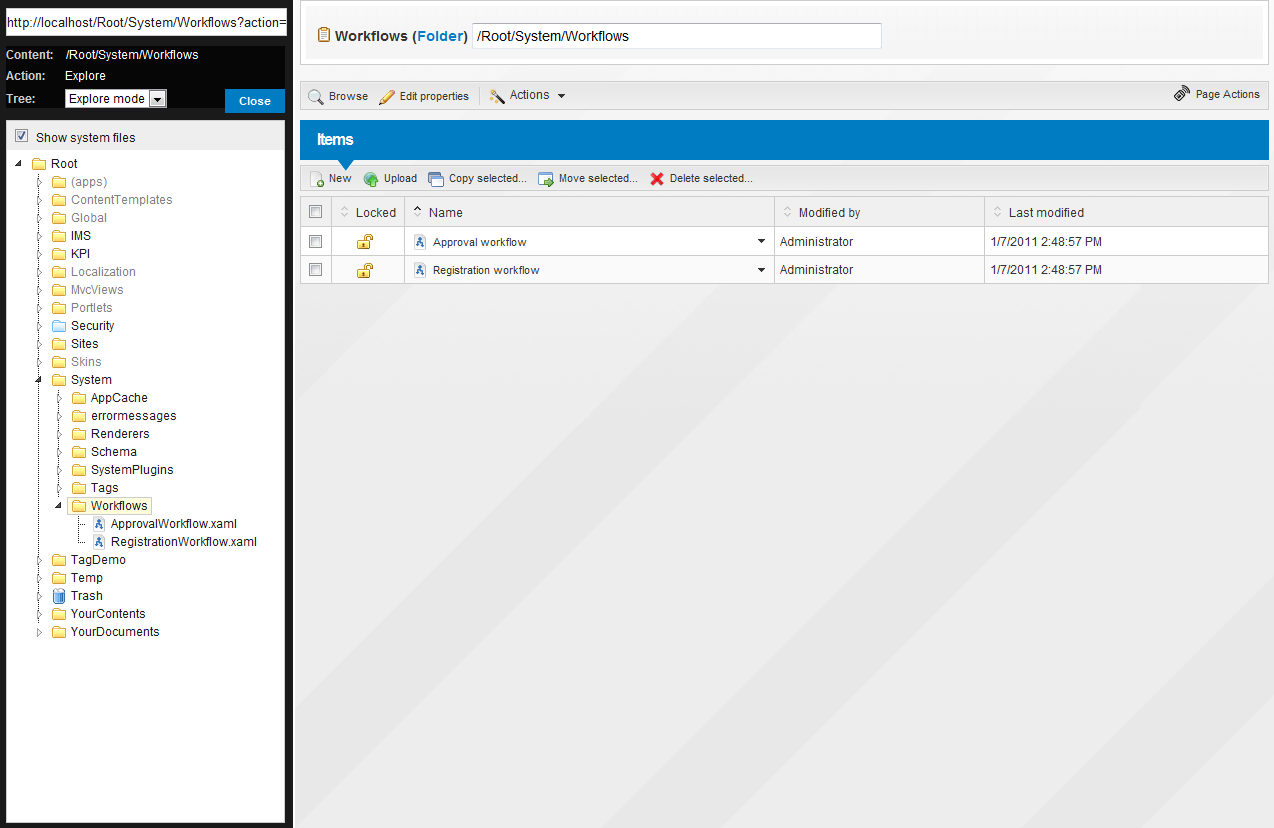
3. Upload the Workflow Definition
- In the right hand side panel click on Upload
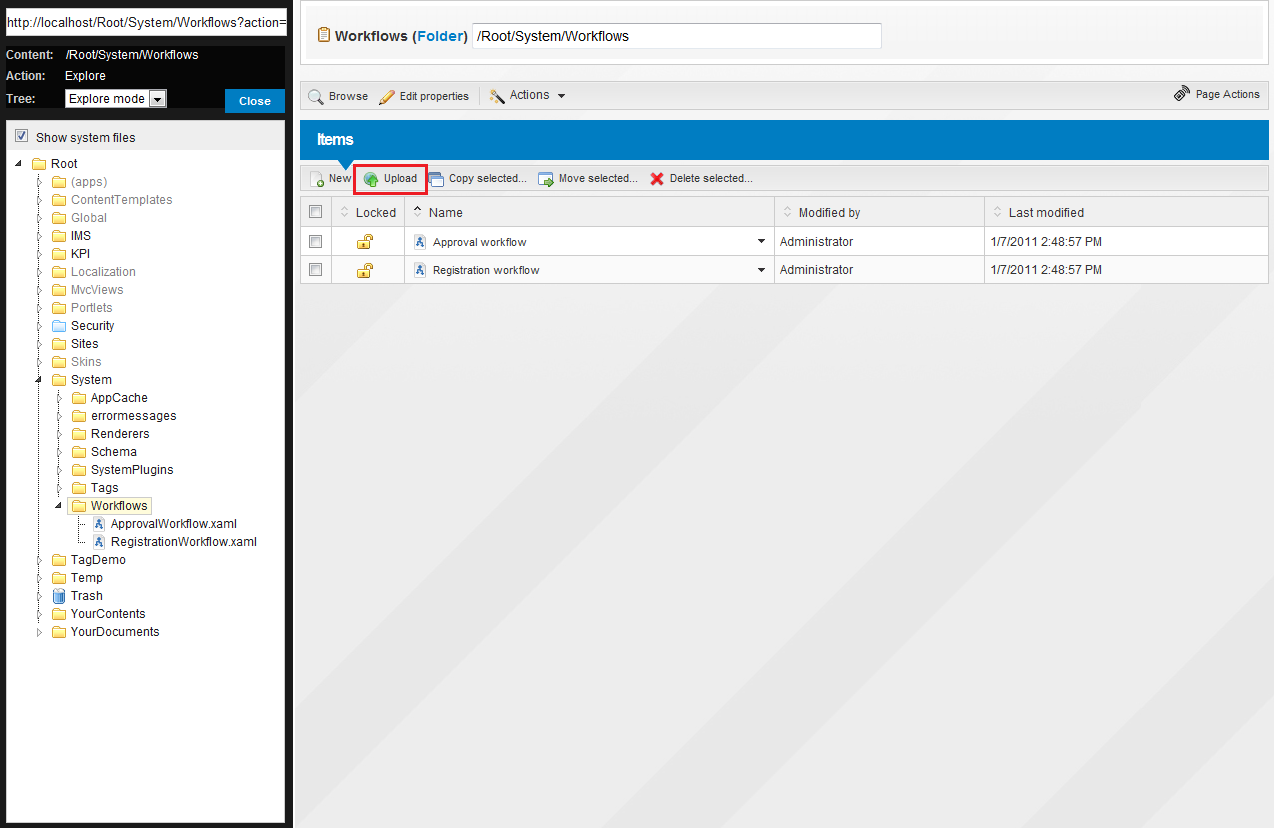
- Click on Upload File (Select)
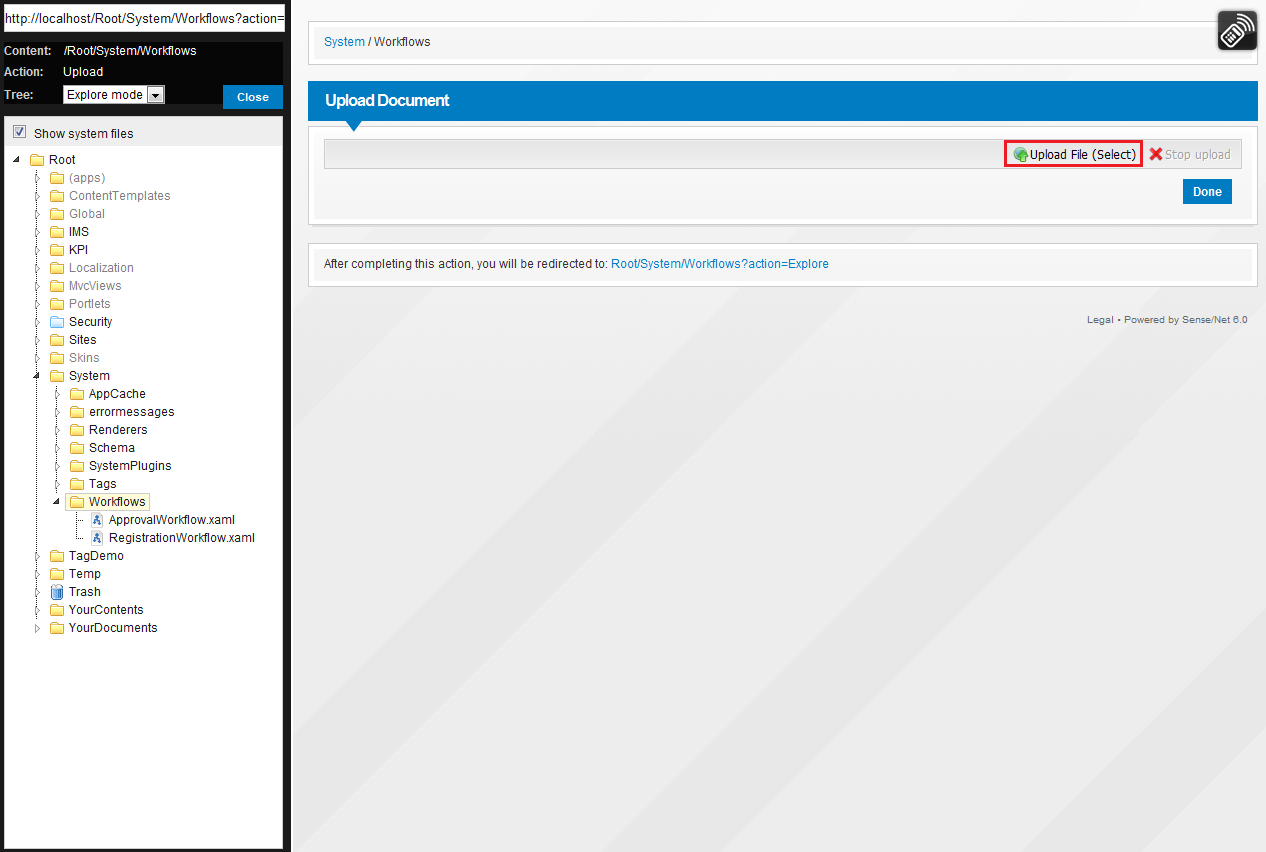
- Then select the XAML file, which represents your workflow.
The extension of this file must be .xaml
4. Set workflow definition properties
There are a couple of fields that you can set on the workflow definition content after uploading the xaml file. These are the following:
- Content workflow: True for workflow types that are related to one content (e.g. approval or printing). Related content must be an existing content.
- Assignable to content list: determines if this workflow can be assigned to a content list (e.g. a document library).
- Abort on related content change: If set to true workflow will be automatically aborted whenever the Related Content changes.
- Automatic deletion: You may choose if and when the workflow content should be deleted after a workflow finished running. In most cases the default setting (delete when completed without errors) is sufficient. You may also choose to always delete or always keep the workflow content - e.g. for auditing reasons.
5. Create a Content Type
After the workflow definition is uploaded, you have to bound that to a Content Type in Sense/Net. In most cases that means you have to create a new Content Type.
Check out our wiki page about How to create a Content Type
The bounding is based on naming conventions: the Content Type must have the same name as the Workflow Definition without the file extension (e.g. if you uploade a Workflow Definition called Sample.xaml then the name of the Content Type which represents this workflow in the system must be Sample). In addition to the naming convention, the newly created Content Type must be inherited from the Workflow Content Type.
The Content Type Definition of a Sample workflow should look like this.
<ContentType name="SampleWorkflow" parentType="Workflow" handler="SenseNet.Workflow.WorkflowHandlerBase" xmlns="http://schemas.sensenet.com/SenseNet/ContentRepository/ContentTypeDefinition">
  <DisplayName>Sample Workflow</DisplayName>
  <Description>Sample Workflow</Description>
  <Icon>workflow</Icon>
  <Fields>
  </Fields>
</ContentType>
You should notice the following things from the example above:
- parentType="Workflow" the parent of your type must be the Workflow type or a derived type of that type.
- handler="SenseNet.Workflow.WorkflowHandlerBase" the Content Handler of your type must be SenseNet.Workflow.WorkflowHandlerBase or a derived type of that type.
5. Create Content Views for your workflow
The final steps of defining a workflow is creating two Content Views for initializing and starting the workflow. To do this, follow the instructions of the How to create initial and start views for a workflow tutorial.
Video
Related links
- Workflow
- How to create initial and start views for a workflow
- How to start a standalone workflow
- How to start a content workflow
- How to assign a workflow to a Content List
- How to display running workflows column in a Content List
- How to abort a running workflow
- How to configure the polling interval of workflows
- How to create a Workflow Activity
- How to debug workflows in SenseNet
