How to create a Content Type
- 100%
- 6.0
- Enterprise
- Community
Planned
Overview
Content types define the structure of content:
- name, description of content types and available fields are defined with Content Type Definitions (CTDs),
- optional custom business logic is implemented via Content Handlers, custom Fields and custom Field Controls.
A Content Type Definition is an XML-format configuration file for types. After creating a new Content Type Definition new content of the created type are immediately available in the system and can be created and used. The XML configuration (CTD) holds information about
- the content's name, description, default icon
- parent content type
- fields (name, title and configuration of fields)
In case default logic is not adequate and defining custom programmed logic is necessary a Content Handler for the type can be implemented in C# and the compiled library placed in the web folder's bin directory. Attached business logic can also be added by implementing custom Fields and custom Field Controls.
Steps
In this section I will show you how to create a new Content Type step-by-step. To demonstrate the type definition capabilities of Sense/Net I will create a new Movie type that can be used to build movie data bases.
1. Login and go to Explore
The user must have administrator privileges - you may use the admin user with the default install. Explore is a management surface of the portal where you can navigate through the Content Repository and manage content. Start Explore by clicking on the Explore link in the Portal Remote Control, the floating black panel on the main page visible to administrators!
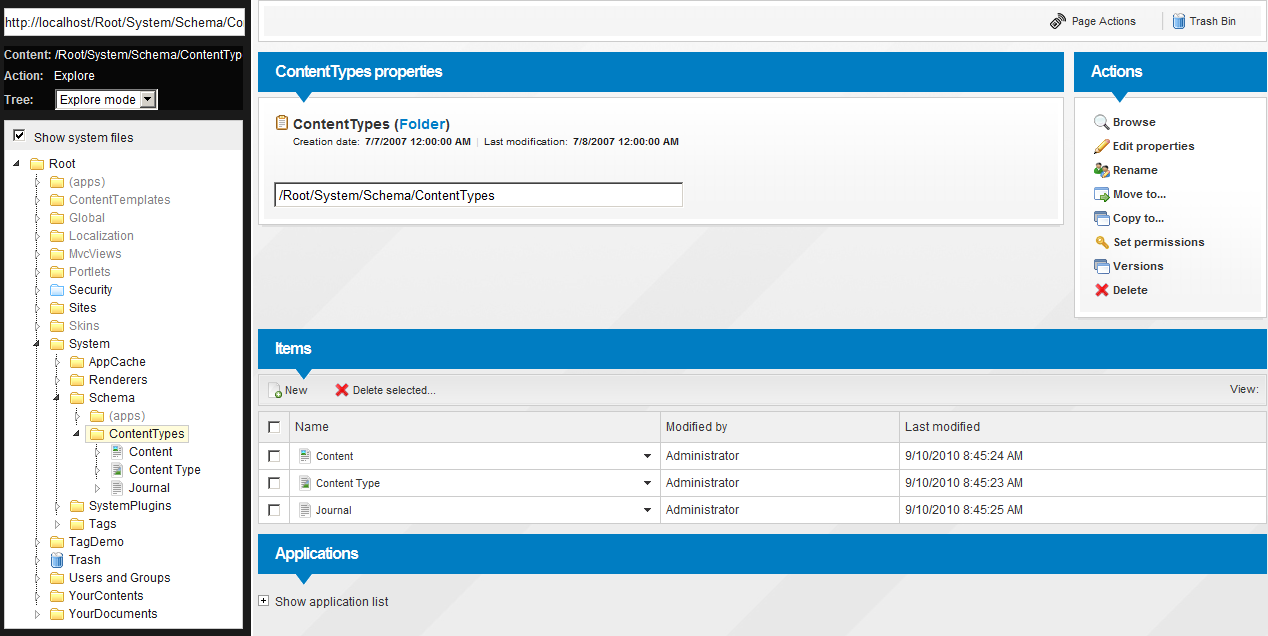
- Using the tree on the left side of Explore page navigate to /Root/System/Schema/ContentTypes folder
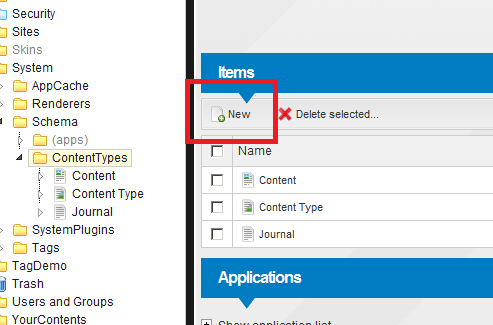
- In the list grid on the right side click on the New link.
- An empty editor page will appear where the Content Type Definition XML can be inserted.
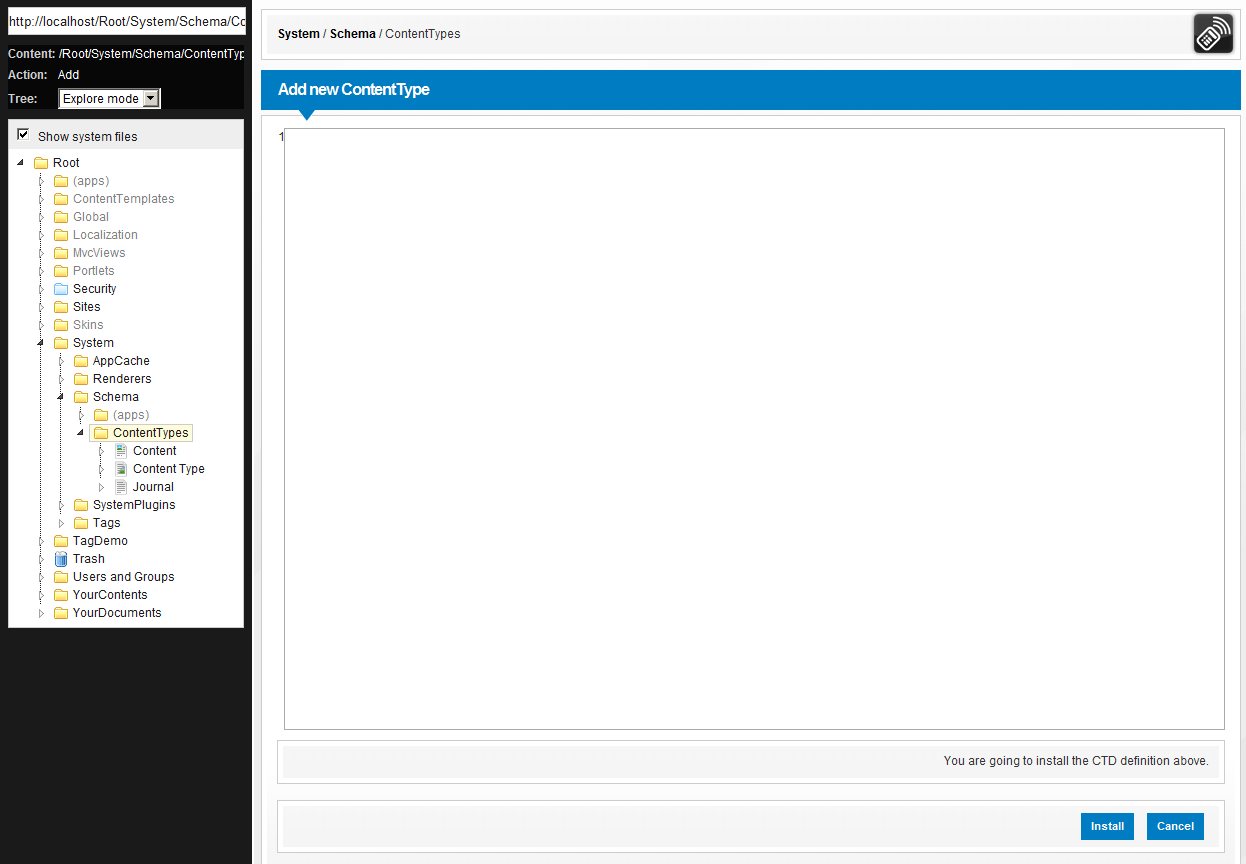
This is where we will type in the Content Type Definition XML of our new type.
3. Insert Content Type Definition XML and click Install
Our new Movie type will have the following features:
- holds basic information of the movie (title, year, director, plot outline)
- holds an image of the movie poster
The Content Type Definition for the Movie type will look something like this:
<ContentType name="Movie" parentType="GenericContent" handler="SenseNet.ContentRepository.GenericContent"
xmlns="http://schemas.sensenet.com/SenseNet/ContentRepository/ContentTypeDefinition">
  <DisplayName>Movie</DisplayName>
  <Description>A simple movie type to build movie databases</Description>
  <Icon>Content</Icon>
  <Fields>
    <Field name="Title" type="ShortText">
      <DisplayName>Title</DisplayName>
      <Description>Title of the movie</Description>
    </Field>
    <Field name="Year" type="Integer">
      <DisplayName>Year</DisplayName>
      <Description>Year of release date</Description>
    </Field>
    <Field name="Director" type="ShortText">
      <DisplayName>Director</DisplayName>
      <Description>Name of director</Description>
    </Field>
    <Field name="Plot" type="LongText">
      <DisplayName>Plot</DisplayName>
      <Description>Plot outline</Description>
      <Configuration>
        <ControlHint>sn:RichText</ControlHint>
      </Configuration>
    </Field>
    <Field name="ImageRef" type="Reference">
      <DisplayName>Poster image (reference)</DisplayName>
      <Configuration>
        <VisibleBrowse>Hide</VisibleBrowse>
        <VisibleEdit>Hide</VisibleEdit>
        <VisibleNew>Hide</VisibleNew>
        <AllowMultiple>false</AllowMultiple>
      </Configuration>
    </Field>
    <Field name="ImageData" type="Binary">
      <DisplayName>Poster image (binarydata)</DisplayName>
      <Configuration>
        <VisibleBrowse>Hide</VisibleBrowse>
        <VisibleEdit>Hide</VisibleEdit>
        <VisibleNew>Hide</VisibleNew>
      </Configuration>
    </Field>
    <Field name="Image" type="Image">
      <DisplayName>Poster image</DisplayName>
      <Bind property='ImageRef' />
      <Bind property='ImageData' />
    </Field>
  </Fields>
</ContentType>
Let's go through the xml very quickly. There are some basic properties defined on the root element:
- name="Movie": this is the name of the Content Type. After installing the CTD the new type will appear under the nameMovie.
- parentType="GenericContent": this is the parent Content Type. Content Types are structured in a tree hierarchy and a newly defined Content Type may derive from any other CTD thus inheriting its fields. We won't need any other special fields or functionality, so the Movie type can be derived from the most basic content type, the GenericContent.
- handler="SenseNet.ContentRepository.GenericContent": every Content Type has background functionality implemented in C# - also referred to as a Content Handler. Our new Movie content will have no special business logic so it's okay to use the GenericContent's content handler.
- xmlns="http://schemas.sensenet.com/SenseNet/ContentRepository/ContentTypeDefinition": this defines the xml namespace
The main structure of the xml contains the following elements:
- Title: the displayed name of the type
- Description: the description of the type
- Icon: default icon for the type. Our Movie type will use the basic Content icon (upload custom icons to the /Root/Global/images/icons folder)
- Fields: this element is the container of field definitions
The following fields are defined in the Fields section:
- Title: the title of the movie. This field is already defined on the parent Content Type (GenericContent) since every content has a displayed name. For a movie this is the title of the movie so we override the parent's Title field and redefine the title and description of the field
- Year: movie release date. Year info is adequate so we use a simple IntegerField field for this
- Director: the name of the director of the movie. A simple ShortTextField field is used
- Plot: we use a LongTextField field to contain the plot outline. Note that we indicated that the field is displayed with a RichText control instead of the default LongText field control
- ImageRef: a technical field for the poster image
- ImageData: a technical field for the poster image
- Image: field for the poster image (uses ImageRef and ImageData technical fields referred in the Bind element)
You can go ahead - paste the xml into the content type editor box and click Install.
4. Use the created type
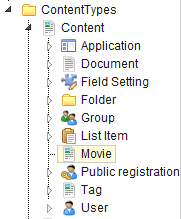
After installing the new Content Type Definition and refreshing the ContentTypes folder you should see the Movie type appeared under the Content type:
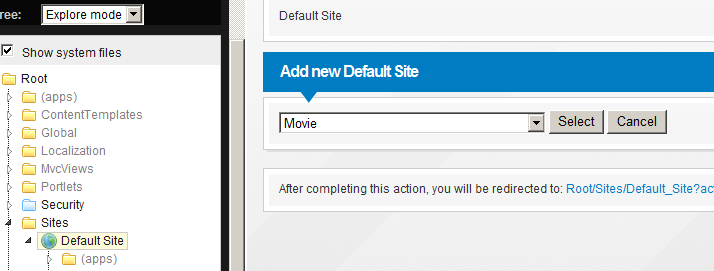
Now you can create new Movie content and manage them just like any other content. Stay in Explore mode, go to Default Site and click on New in the grid. In the appearing screen select Movie from the dropdown:
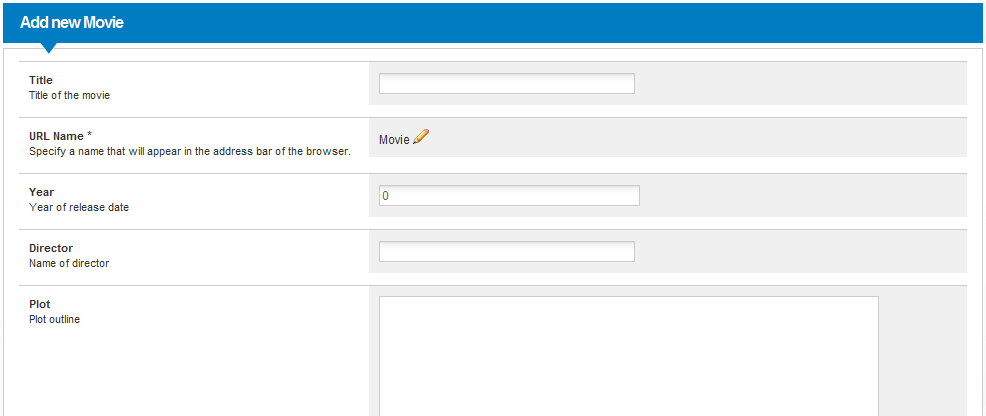
The edit ContentView of the type with the defined fields appears:
5. Modifying a Content Type Definition
You can view and edit the Content Type Definition of your type simply by navigating to the Content Type in Explore. A surface is provided with child Content Types, field information and available actions:
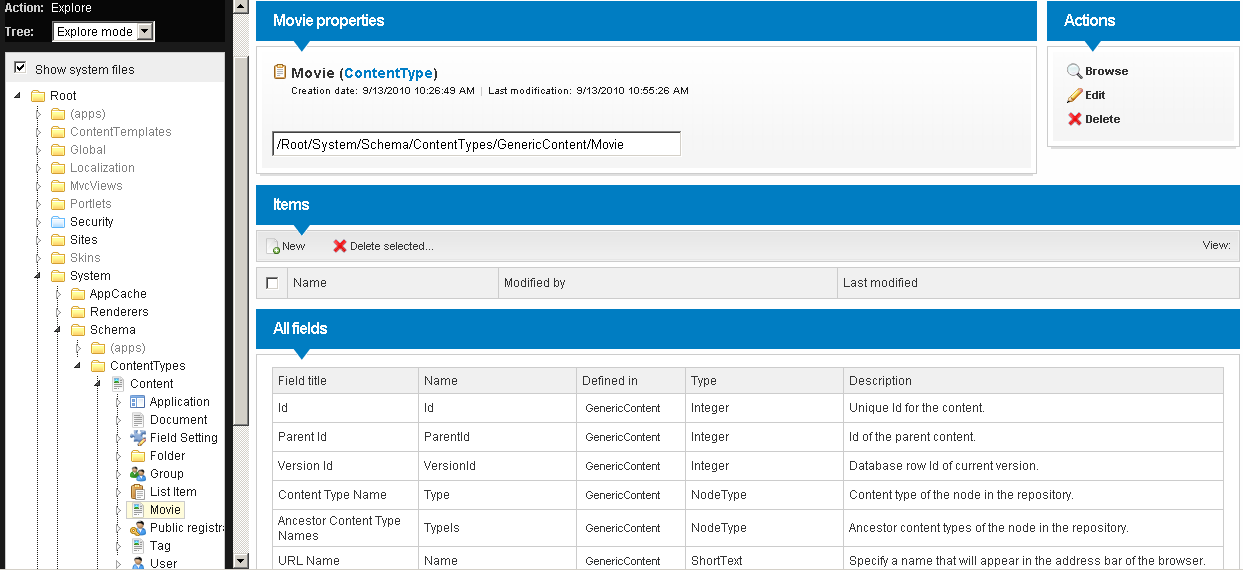
To edit the CTD click on the Edit link and the Content Type editor will appear. Click Install to save changes to the CTD.
Video
Related links
- Content Type
- Content Type Definition
- Content Handler
- How to implement custom business logic with Content Handlers
- How to implement custom fields
- How to implement custom field controls
