How to create a Site from scratch
- 100%
- 6.0
- Enterprise
- Community
Planned
Overview
Sites are the primary placeholder for web pages and Content. The Site Content Type is the corresponding type to IIS sites. To define a site you have to set its urls and a start page, from then onwards it can be used as the top-level container of pages and Content. Following article helps you to build and set up a Site in Sense/Net.
Steps
Access Content Explorer
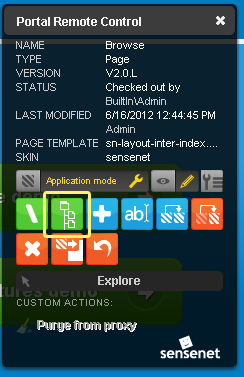
Log in to the system as an administrator. If you haven’t changed anything since installation, the login portlet is on the top right corner of the opening page. The user name/password is: admin/admin. You can enter Content Explorer from the Portal Remote Control.
Create Site content
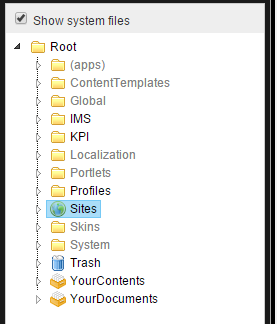
Locate the /Root/Sites folder because our new Site will be the child of this container.
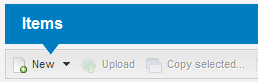
Click on the New action in the toolbar on the top of the child list.
Choose the Site Content Type.
You will see a form on which you can enter your new Site's data.
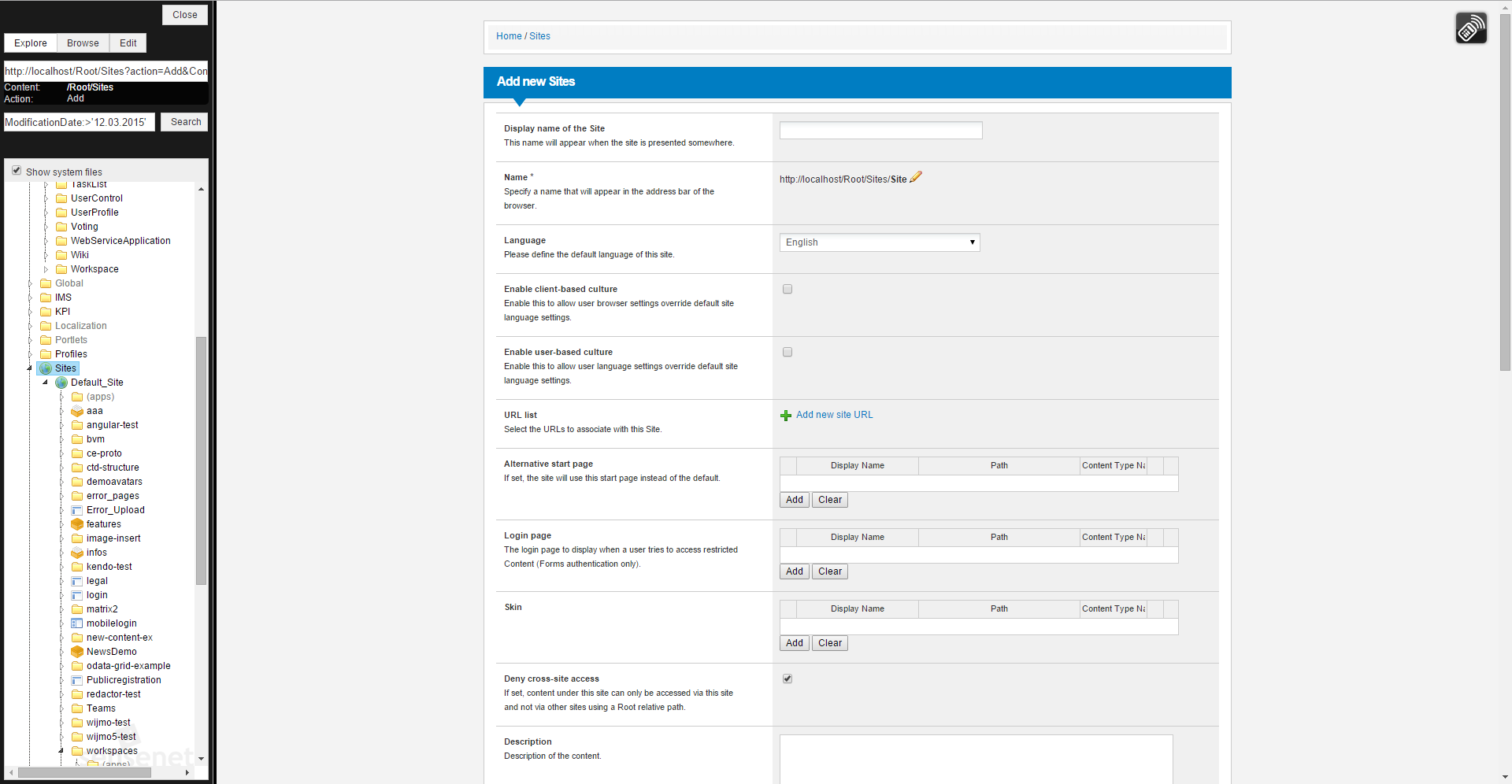
Set up
Add a Display Name.
Choose the language of the site (by default English or Hungarian language can be chosen, default language is English).
Add your site’s URL to the URL list. You also have to choose an authentication type related to this URL.

Because this site will be created without any children content, we can skip the start page and the login page settings, we’ll set them later.
The most important thing is to change the default Deny cross-site access setting to false (uncheck the box). If we skip this setting our new site will be unavailable because it has no login page yet, and you will not be able to reach the site via other sites e.g. the Default Site.

Save the content.
Add Login and Main pages
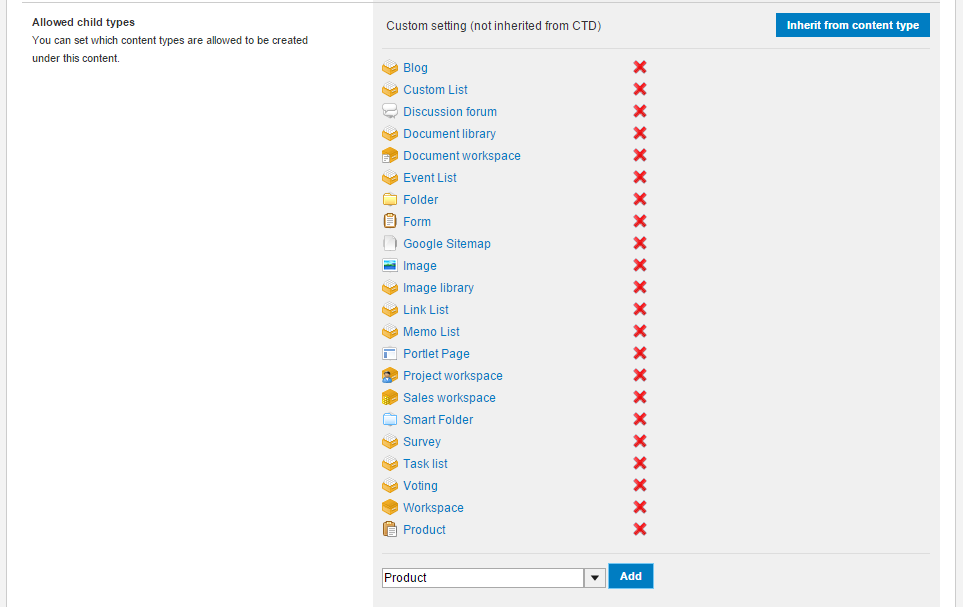
You are now able to add content underneath the site, so let’s add a Login page. Locate Sense/Net’s Default Site in the tree and copy its login page with the login page contents context menu. Since your new site is not yet configured for the types of content it will have, you will receive an error message telling you the 'WebContentDemo’ type is not allowed. You can do one of two things:
- Disregard the error message and click Copy as this currently has not importance for us
- Edit your new site, and add 'WebContentDemo’ as an allowed child type in the relevant section, just start typing in the field at the bottom of the section
Search for your new Site in the content picker window and click Ok.
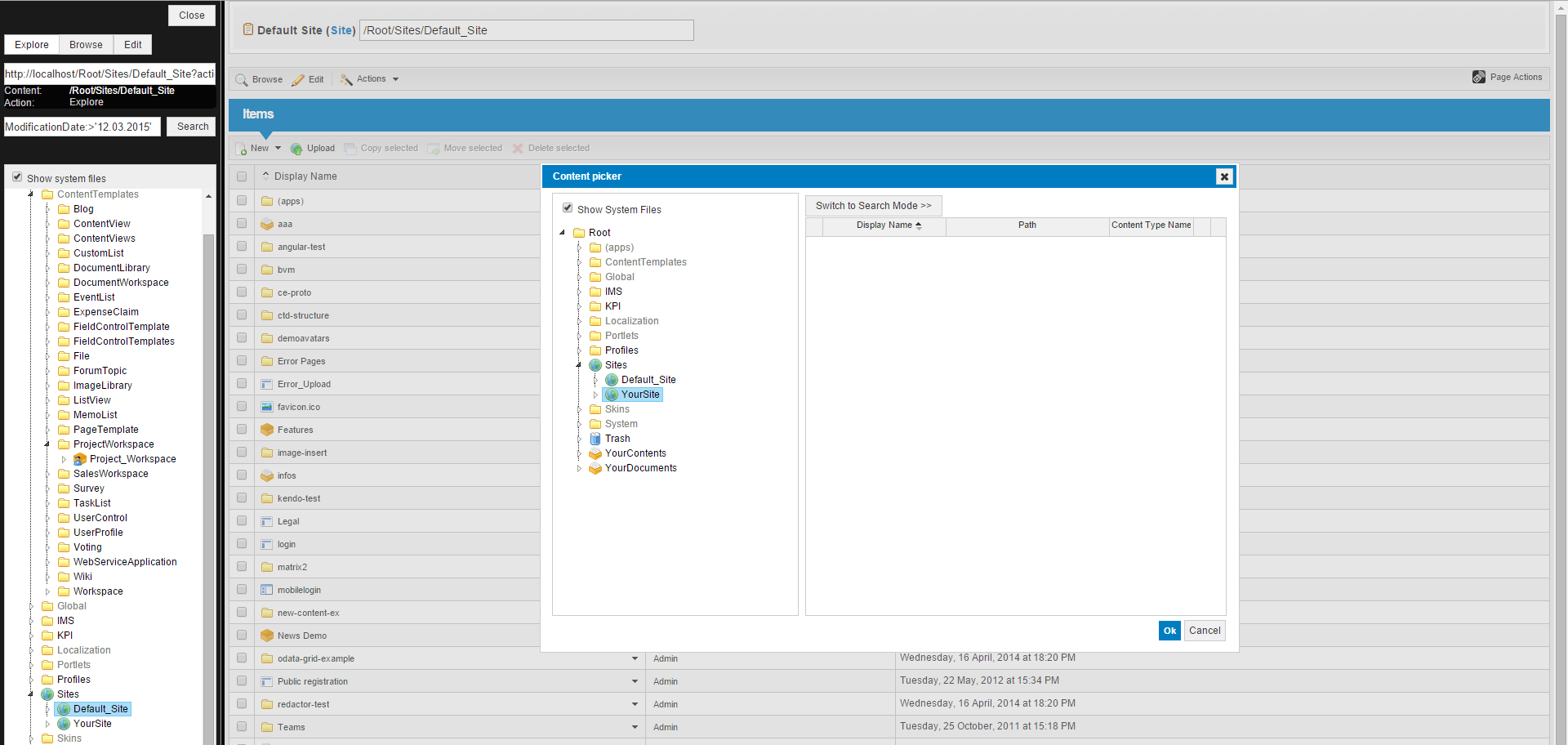
Your Site has a login page now so you’re able to set this page as the Site’s login page. Locate your site and switch to Edit mode. Use the content picker to pick the newly copied login page to the Site’s Login page field.

Create your Site’s main page with the Sense/Net application model! Locate your site in Explore mode click on New and choose the ‘System Folder’ content type! Name it to (apps) and save it!
Create a folder names This into your site’s (apps) folder. The This folder will contain the Sites Browse page which will actually be your Sites main page.
Add a new Portlet Page Content into the This folder names Browse.
Related links
References
There are no external references for this article.
