How to create a simple Portlet Page
- 100%
- 6.0
- Enterprise
- Community
Planned
Overview
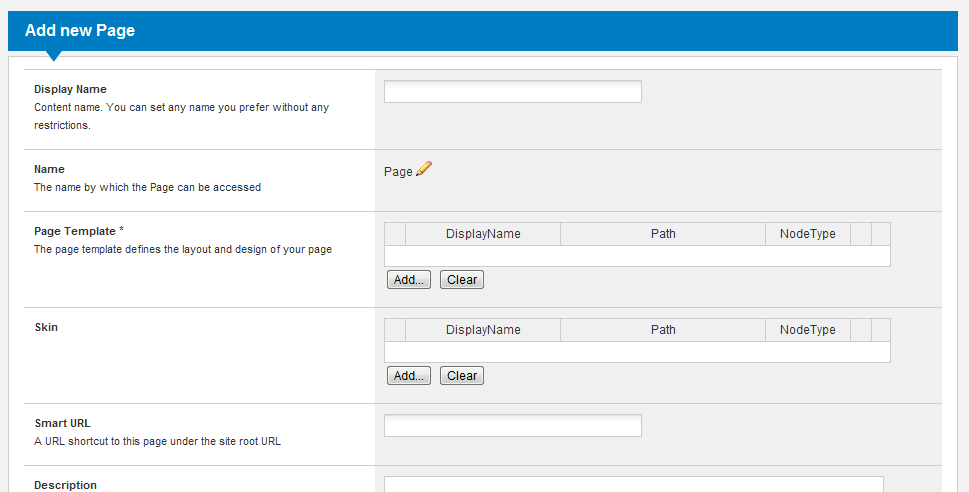
A Portlet Page is a content (like an article or a folder) so you can create a Portlet Page the same way as other content in the repository. Every page has some special properties that allow as to customize their appearance. We can set a Page Template or Skin for a page which allows us to put our portlets in different zones with different styles - these are defined in the Page Template and in the Skin.
Steps
1. Add a new portlet page
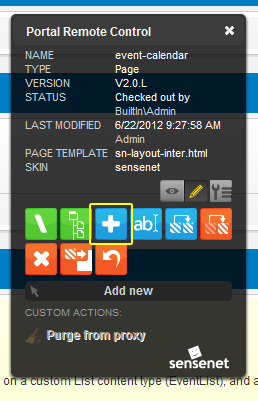
Open the Portal Remote Control on the main page of the default site and click the 'Add new' button:
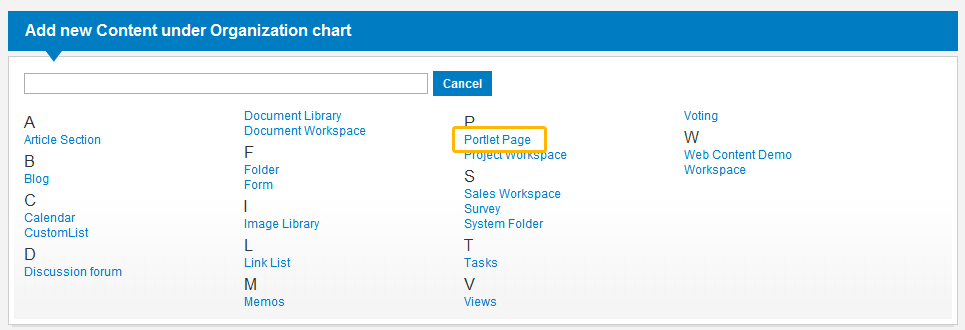
Choose Portlet Page from the list:
2. Select Page Template
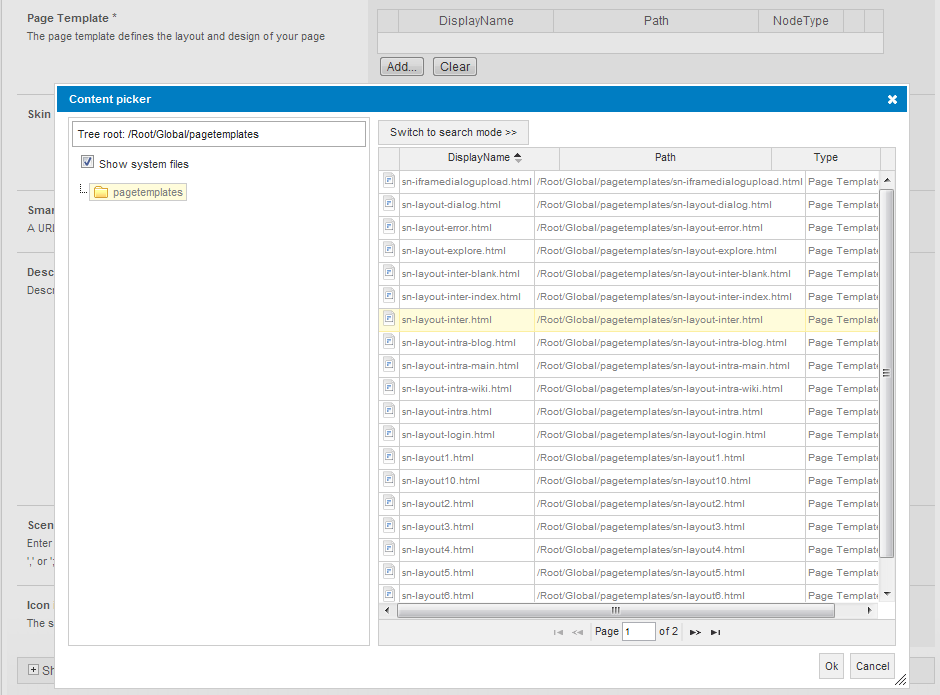
Click on Add to pick a Page Template. You can choose from a list on a Content Picker window. Our new page will be displayed using the selected Page Template. Here we select sn-layout-inter.html:
3. Choose skin
Click on Add and choose a skin (eg.: sensenet):
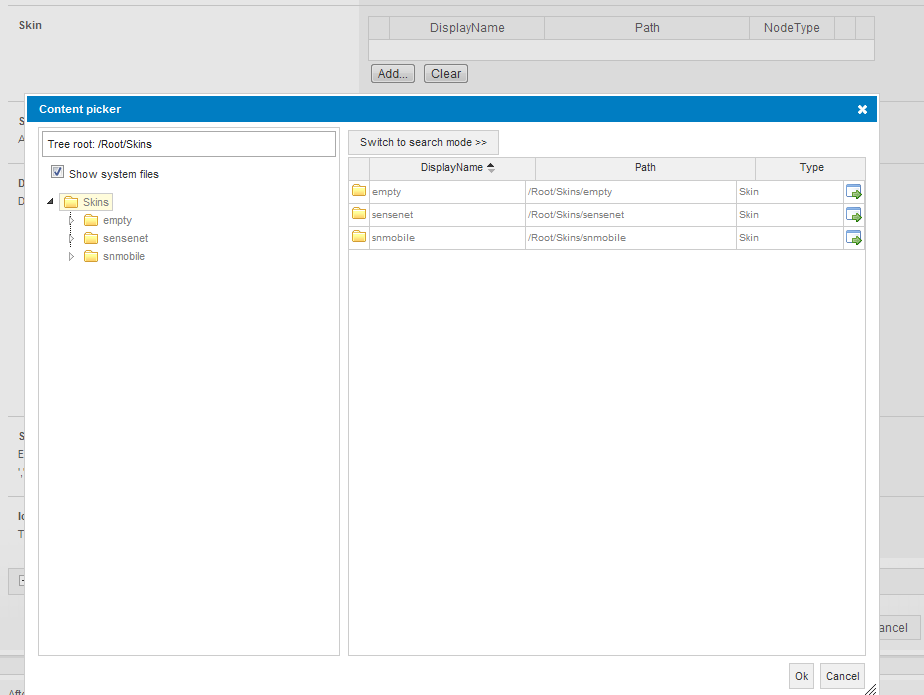
Your page will use the selected skin's css and js files. The css and js files are dynamically linked in the page template from the selected skin. If the referenced css is not found under the selected skin the system will try to load it from the Root/Global folder (more info here: Skin anatomy).
4. Set visibility
The page can be configured as a hidden page. Hidden pages will not appear in menus but are viewable if you type its URL in the browser's address bar. To create a hidden page check the hidden check box.

5. Set index
With the index field you can specify the order of this page in menus. If you want to display pages in the order given by their indices, you must specify the sorting method accordingly on portlets or in content views/renderers (Query syntax).

6. Create a redirect page
If you want to create a page that will redirect check the Redirect page check box.

To make this work you must enter a URL in the Redirect URL field. The system redirects you to this URL when you request this page.

Click Done editing and then your page is ready to put some Portlet on it. To see how it is done, read How to add a portlet to a page.
Related links
- The Skin System - for End users
- Page Template
- How to add a portlet to a page
- List of Portlets
- Portal Remote Control
References
There are no external references for this article.
