How to add/modify/delete content in Content Explorer
- 100%
- 6.0
- Enterprise
- Community
Planned
Overview
If you are a power user and you have the necessary permissions then you are able to use all operations on every content using the Content Explorer. This tutorial shows you how to create a new content, how to modify and delete it in the Content Explorer.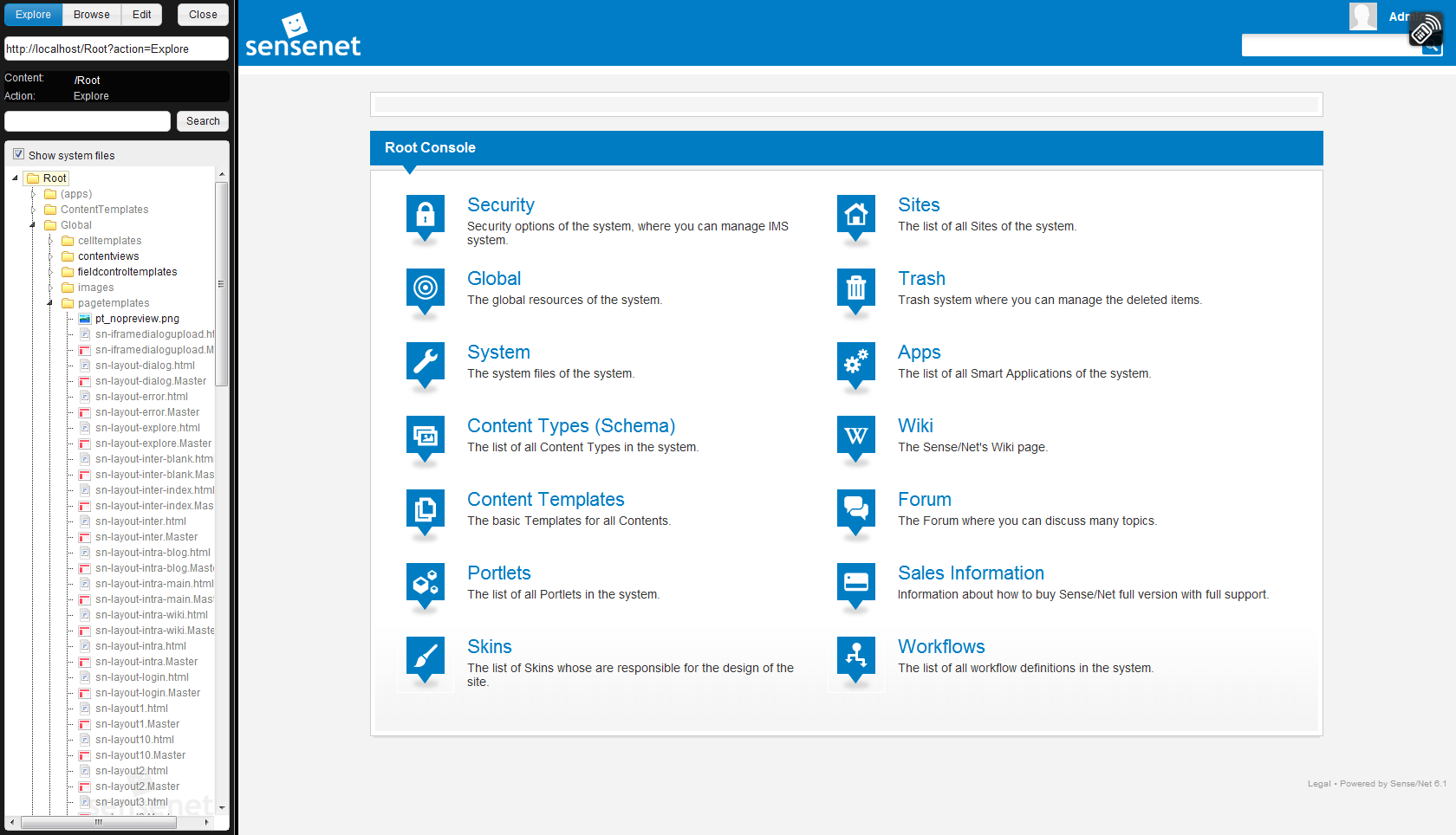
Steps
Access Content Explorer
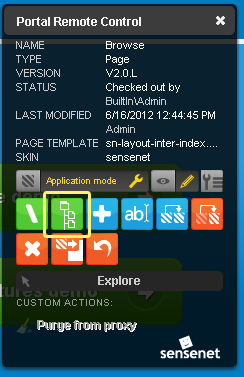
You can enter Content Explorer from the Portal Remote Control or from the Workspace actions menu in Workspaces.
Create content
If you want to create a new content you must select the parent content in which you want to create the new content. Open the branches of the tree and click on the content that will be the parent.
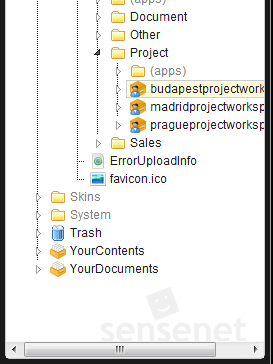
Check the current content on the top of the right side. You will create the new content under this and your new content will be under this content after you've created it.

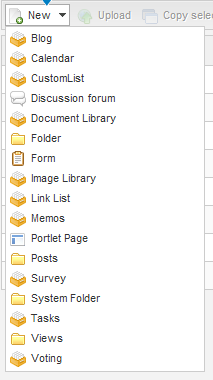
Click on the New action in the toolbar on the top of the child list.
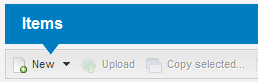
You’ll see a dropdown list with some content types. This is the list of the content types that you are able to create under the chosen parent content. Choose the content type that you want to create.
You will see a form on which you can enter your new content's data. To complete creation of the content click on the Done editing button.
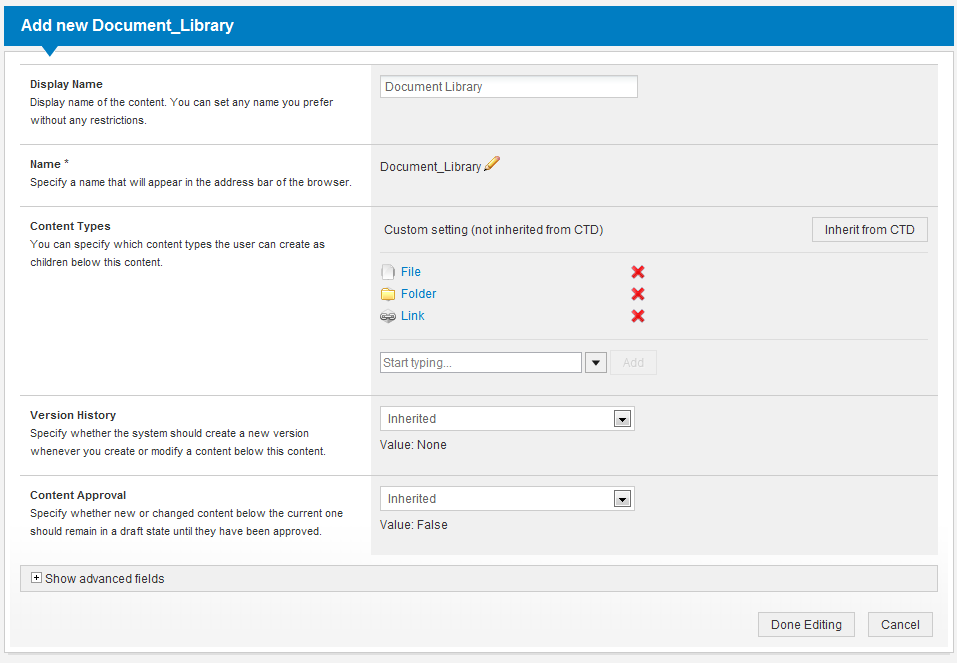
Then your content is ready to use on your site you will see it in the tree and you will be able to use it as a parent of other content.
Edit content
There are two possibilities to edit a content.
- 1. select it in the tree and on the right side click the Edit action in the selected content's toolbar.

- 2. select its parent in the tree and on the right side in the list open the action menu of the chosen content and click on Edit action.
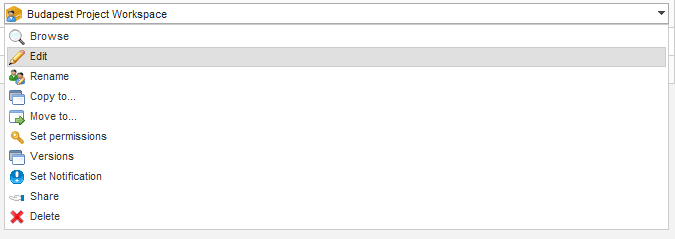
You’ll see the same form like when you added a new one but the controls will be filled with data of content. When you complete editing this content, click on the Done editing button.
Delete content
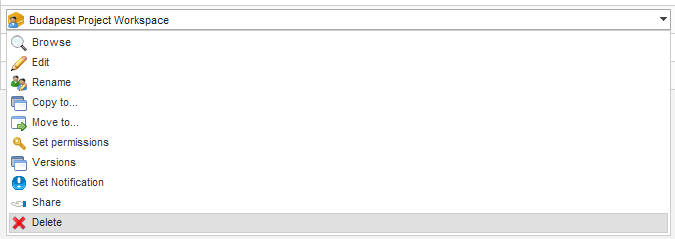
You can choose content to delete like as you choose to modify them. If it is the current content click delete from the Actions menu.
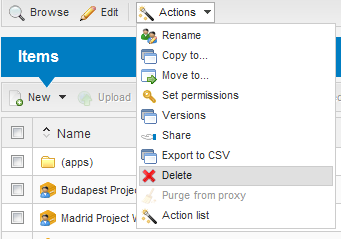
If you want to delete a child item from the list click delete from its action menu.
Related links
References
There are no external references for this article.
