SenseNet Survey Editor for developers
- 100%
- 6.5.5
- Enterprise
- Community
Planned
Overview
Survey Editor is a tool to help users creating and managing surveys without coding. It is actually a jQuery plugin which can be attached to a List-based Content and manipulate with its Fields. Editing, modifying and browsing the Survey is based on Sense/Net Content Views, and the Field manipulation is working through Sense/Net OData REST API.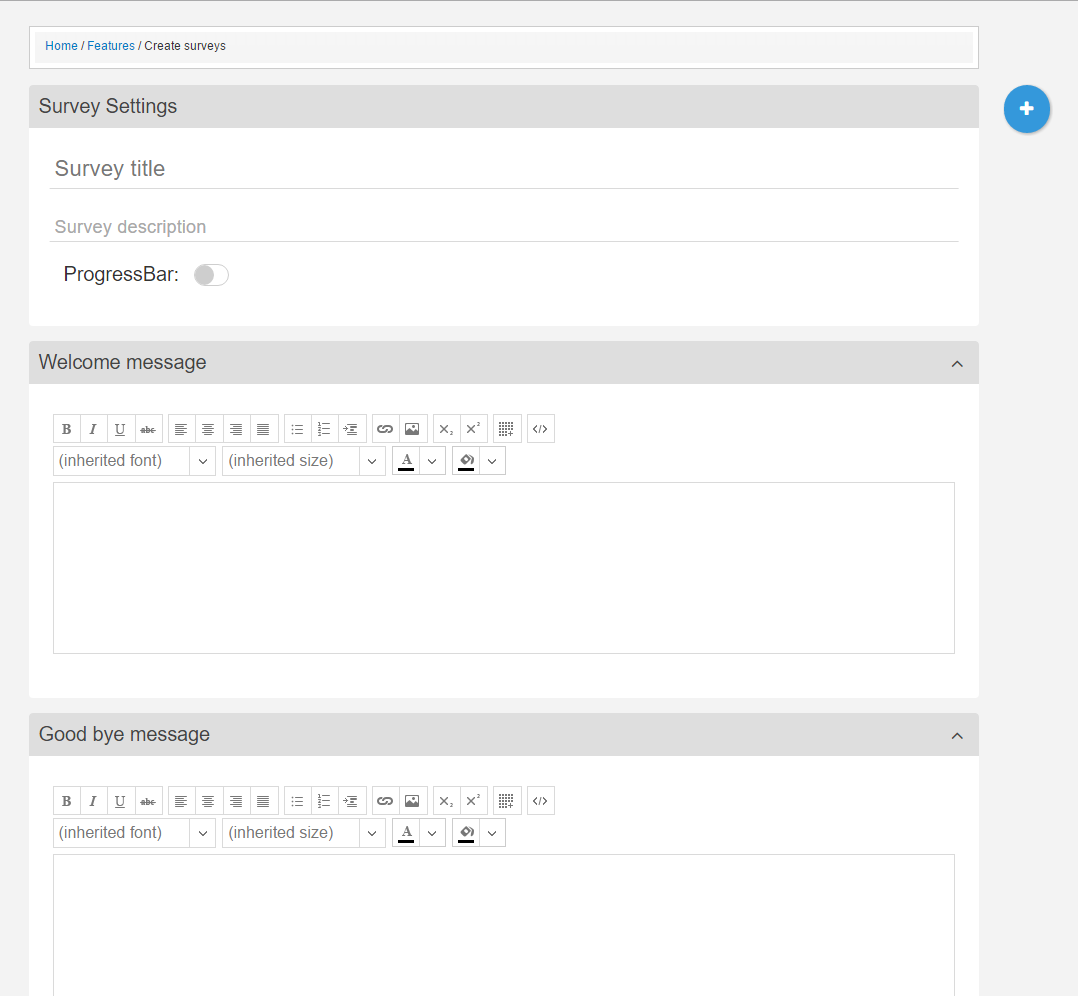
SurveyList ContentType
SurveyList is a new Content Type derived from List because in this case we will use the expando fields to add, modify and delete Questions. There're three new related OData action, for further information please check this article. The expando fields will be actually added to the SurveyLists children items and because we have to create this children item a special way (the Survey Editors browse mode will render the form to fill out) we've created a new Content Type for the children items to. This new type is the SurveyListItem.
Store Survey's Data
The SurveyList type has some common and some special Fields that we need to use the Survey Editor. Besides DisplayName and Description it has three additional LongText fields one for the intro text, on for the outro text of the Survey and one for store the Survey structure in JSON. When a user creates or modifies a Survey this Fields are changing in the background and when the user saves the Survey actually this Fields value will be saved on the Survey Content.
Store Questions
As it is mentioned above the questions are actually expando fields on a list. So if a user add a new question to the Survey first the new question is added to the JSON structure and marked as new. When the user saves the Survey the marked questions will be saved on the SurveyList as Fields with all the possible validation and other settings.
Getting started
The Survey has three modes/Content Views as other ContentTypes but it means in this case that the SurveyList Content Type has an InlineNew.ascx and an InlineEdit.ascx for adding and editing a survey and the SurveyListItem has an InlineNew.ascx to display the survey for end-users to fill-out the form (and actually create a new SurveyListItem).
The Survey plugin should be bound to an html container element just like other jQuery plugins.
<div id=”surveyContainer” data-view="edit"></div>It is important to set the view mode in the data-view attribute that can have three values: new, edit and browse just the same as in the case of Content Views. Because we use the same plugin in all the three modes the plugin has to know about the current view to render to questions in the appropriate way and bind all the needed functionality.
     var survey = $('#surveyContainer').Survey({
        path: currentListPath,
        title: $('.sn-ctrl-displayname'),
        description: $('.sn-ctrl-description'),
        structure: $('.sn-ctrl-rawjson'),
        intro: $('.sn-ctrl-intro'),
        outro: $('.sn-ctrl-outro')
    });
Configuring the Survey Editor jQuery plugin
Path of the Survey (current List).
It should be a jQuery object, the input which will store the title (DisplayName) of the Survey content.
It should be a jQuery object, the input which will store the description of the Survey content.
It should be a jQuery object, the input which will store the Survey's section and field structure in JSON.
It should be a jQuery object, the input which could store the intro text of the Survey.
It should be a jQuery object, the input which could store the outro text of the Survey.
Most of these jQuery objects represent Fields in the background. Since we're using common Sense/Net Content Views to display the Survey content we have to reach (read and write) these fields are hidden and connected to the plugin through this plugin configurations.
Methods
Some of the plugin methods can be called outside a plugin (e.g. from a Field js) to get question or section parameters or execute a function on a question or section. First of all if you want to use one of them, you have to get the Survey object itself in the following way:
var survey = $('#surveyContainer').data('Survey');
Then you will be able to reach the following methods:
Initializes the Survey.
survey.init();
Initializes the Survey in Edit mode.
survey.initEditor();
Initializes the Survey in Browse mode.
survey.initSurvey();
Initializes the default Fields of the Survey (DisplayName, Description, etc).
survey.initSurveySettings();
Renders a Survey section by the given section object and section id which represents the last section.
survey.renderSurveySection(section, lastSectionId);
Renders a Survey question by the given section jQuery object and a question object.
survey.renderSurveyQuestion($section, question);
Initializes the a Survey menu that let you add new sections to the Survey.
survey.initMenu();
Initializes the a Survey's progressbar.
survey.initProgressbar();
Lets you to open and close a section by its Id.
survey.toggleSection(sectionId);
Gets the container DOM element of the viewer.
viewer = $dv.data('snDocViewer');
var $container = viewer.getContainer();
Deletes a section by its Id. It can have an optional callback parameters, so you the Survey editor can execute an additional function after the section is deleted.
survey.deleteSection(sectionId, myCallback());
Creates a new section after the last one.
survey.addNewSection();
Sets a section selected by its Id (section get a new class and the page is scrolled to the selected section).
survey.selectSection(sectionId);
The Survey jumps to a section by a given current section object and an optional boolean parameter (true if you want go to the next section false if you want to back. If there's no second parameter the survey will go to the given section).
survey.goToSection($currentSection, true);
Page scrolls to a section by the given section Id.
survey.scrollToSection(sectionId);
Adds a question to a section by a section Id and a question type string. With only two parameters an new question is added with its default values. If you want to add an exisiting question to a section you can add it as a third parameter of this method.
survey.scrollToSection(sectionId, type);
Or
survey.scrollToSection(sectionId, type, question);
Sets a question selected by its Id (question's editor part will be open and displayed).
survey.selectQuestion(sectionId);
Saves a question a given question to a section by a sectionId. Optional third parameter could be a callback function.
survey.saveQuestion(sectionId,question,myCallback());
Changes a question in the structure JSON by the given question object, a sectionId and the affected question's jQuery object. Last one is important because we have to mark the changed elements so if we save the Survey we will know which field's attributes have to be saved.
survey.modifyQuestion(question,sectionId,$('#myQuestion'));
Deletes a question by a given section Id and question Id.
survey.deleteQuestion(sectionId,questionId);
Saves the new survey with all sections and questions. Since we use List based ContentType the Survey and its questions (Fields) are saved sequentially one by one.
survey.saveSurvey();
Saves the modified survey with all modified sections and questions. Since we use List based ContentType the Survey and its questions (Fields) are saved sequentially one by one. Only those things are send to the server which are changed or new.
survey.modifySurvey();
Returns an array with the modified question objects.
survey.getModifiedQuestions();
survey.getModifiedSections();
survey.getModifiedSections();
Returns the Sections array.
survey.getSections();
Returns a section object by a given section Id.
Returns a section object by a given section Id.
Returns a question object by a given section Id and question Id.
survey.getQuestionById('528ecc87','2c4a3be2');
Returns a section object by a given section element (jQuery object).
survey.getSectionByElement($('#mySection'));
Returns a question object by a given question element (jQuery object).
survey.getQuestionByElement($('#myQuestion'));
Convert the JSON structure to string and put it to the given input in the background;
survey.saveDataToTextbox();
Refreshes the preview part of a given question by question Id, a template, a question and a rendering function. The latter one is optional and need to be added if you know that the question (Field) has a custom rendering method.
survey.refreshPreview(questionId,template,question,myRenderingFunction());
Returns the survey's validator object.
survey.getValidator();
Validation
Validation schema
All types of questions (Fields) can have their own validation types, rules, error messages, etc. This validation related things can be defined in the Fields validation schema.
SN.Fields.Number = {
…
  editor: {
     schema: {
        …
        validation: {
            Type: [
               name: 'number',
               text: 'Number',
               defaultValue: 'Number',
               snFieldType: 'Number',
               rules: [
                  {
                      name: 'maxvalue',
                      text: 'Less than',
                      snField: 'MaxValue',
                      type: 'number',
                      value: true,
                      method: function(e){
                          var validate = e.data('maxvalue');
                          if (typeof validate !== 'undefined'
                              && validate !== false) {
                                var value = e.val();
                                if (value === '')
                                  return true;
                                else {
                                  var value = Number(e.val());
                                  var maxvalue =
                                     Number(e.attr('data-maxvalue-value'));
                                  return (value < maxvalue);
                                            }
                                        }
                           return true;
                      }
                  }
                  …
               ]
            ]
        }
        …
     }
  }
…
}
There should be an array with the validation types (text, number, etc), this types will be listed and can be chosen as options in the first dropdown of the validation row.
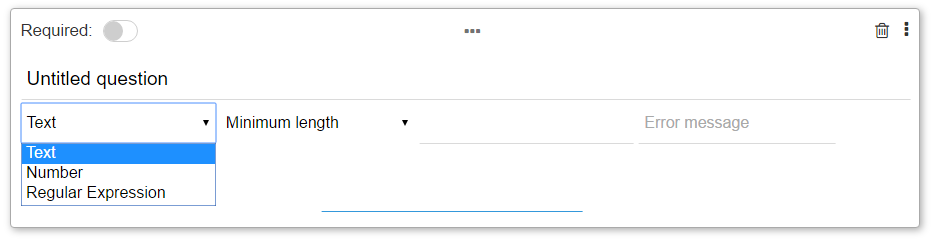
After choosing one of the options the second dropdown will be filled with the related rules (which are defined under the chosen type in the validation schema). If you don't need to define types only rules, create only one Type object and the Editor will know that you want to display only one dropdown with the rules.
Types can be related with actual Sense/Net fields (e.g. the Short answer could be saved as a ShortText or as a Number based on the chosen validation type) so if you want to use that feature define the related Field name in Type's snField property, if it's not necessary leave this property out.
Rule objects are defined in an array under the Type objects and will be listed in the second dropdown in the validation row of a question.
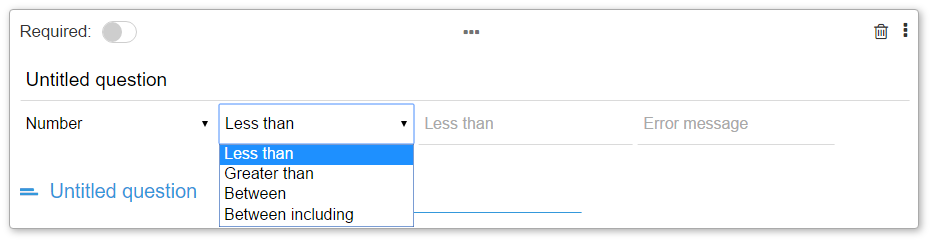
The 'name' property is the identifier of the rule, and because it will be saved in the kendoui validation object must be unique. (Please, check the default kendoui validation rules because they cannot be overridden, so if you create a rule with the name 'max', it will not be used because of the validation rule in kendoui with the same name.) If the rule is related to a Sense/Net FieldSetting, it can be save on the field in the background so that it is possible to validate a question both client and server side.
The first textbox will be rendered based on the chosen rule and it will contain the value with which the user-defined answer will be compared and validated. It is possible to display and use two or more inputs in case of value ranges (e.g. 'Between') with defining the snField as an array:
…
snField: ['MinValue', 'MaxValue']
...
All of the rules must have a method parameter with a function which will be executed when the related answer is validated.
Saving validation definition on a question
The validation definition is saved on every question based on the validation type, rule, value and error message that are set on the question in the validation row. The schema of the saved validation object is defined in the field section of the editor schema as a property object.
Validation: {
       Type: { type: "dropdown", index: 0 },
       Rule: { type: "dropdown", cascadeFrom: 'Type', index: 1 },
       Value: { type: "string", index: 2 },
       ErrorMessage: { type: "string", index: 3, placeHolder: "Default error message!" }
}
If you set a value of one of the dropdowns or textboxes the related property of the validation object gets a 'value' property with the value that you've set.
If you use a question type which is related to a FieldSetting content (Number, DateTime, etc.) it is possible to save the related (e.g. MinValue, MaxValue, etc) settings also on the content itself.
Validation process
Sense/Net Survey question validation is based on KendoUI's validation. All the saved validation rules are grouped in a validation object and the related inputs or even entire questions get the appropriate validation rules, values and error message as attributes.
<input type="number" id="2b93a9f5" name="2b93a9f5" class="sn-answer k-invalid" required="required" validationmessage="Required question" data-validate data-maxvalue data-maxvalue-value="10" data-maxvalue-msg="Must be greater than 10!" >Validation is executed on every question one by one when the user try to navigate to the next page or try to submit the form. The related method is executed also when a value of an input is changed so the user gets immediate feedback. You can learn more about KendoUI validatior [[3]]. And check this very informative and useful [[4]] about extending KendoUI validator with custom rules.
Validating required questions
Validation of required fields works the same as validation on other fields but it's saved and stored separately. All the questions (fields) have a property named 'Required' that can be set to true or false. If a question is set to required on the UI the true value is set on the Required property.

{
   "Type":"ShortText",
   "Control":"ShortAnswer",
   "Id":"ee9d6631",
   "Title":"Untitled question",
   "Hint":"",
   "PlaceHolder":"",
   "Required":true,
   "Validation":{
                          …
}
Custom requirements
In special cases when you want to validate required field you need more than check if the input is empty or not. It is possible to add a custom, complex requirement validation that fit your needs (e.g. you have a grid-form question and want to check if there's minimum one answer per row). Two changes should be made in the question schema. You have to add a property names CustomRequired, which have to contain the reference to the method which have to be executed on validation as default value.
...
Hint: { type: "string" },
Required: { type: "boolean", defaultValue: false },
CustomRequired: {type: "string", defaultValue: "grid-required"}
...
And you have to define the validation method itself in the same form and place where the other validation rules are with the name that you've added in the defaultValue parameter of CustomRequired. Because it is requirement check it cannot be changed on the UI so have to be set and saved when a new empty question is added to the survey. Add the name of your custom method as the 'value' parameters value in Validation.Rule.
Validation: {
    Type: { type: "dropdown", index: 0, value: 'text' },
    Rule: { type: "dropdown", cascadeFrom: 'Type', index: 1, value: 'grid-required' },
    Value: { type: "string", index: 2 },
    ErrorMessage: { type: "string", index: 3, value: 'error!!!' }
}
Templating
Survey Section and Question templating is based on Kendo UI templating. You can define separate templates for the edit and browse views in the appropriate part of the question/field describing JSON schema:
SN.Fields.Grid = {
      …
      editor: {
             schema:{},
             template: '<div class="sn-survey-question sn-survey-question-#=Type#" id="#=Id #">…</div>'
      },
      fill: {
             template: '...',
             ...
      }
}
Please use SenseNet Html templates instead of putting hard-coded html fragments in your plugin.
Settings
In some cases you need to add customizable settings to a question type when a user have to set basic question related stuff like adding new columns in a grid question or new options in a choice type question. You're able to add additional savable fields, a template and a rendering method too, so you can add and display fully custom data and editor functionality to a question.
SN.Fields.Grid = {
    …
    editor: {
        schema: {
            fields: {
                 …
                 GridSchema: {...}
                 Settings: {
                        template: '<table class="sn-survey-gridquestion-table"></table>',
                        render: function($question, view){...}
                 }
            }
        }
    }
    ...
}

Custom rendering
You can add custom additional functionality to your question/field type at the settings and the fill part of the JSON structure. The one that you add into the Settings part will be executed when a new question is added with the type to the Survey. You get the current question as a jQuery object as the argument of your function so you can reach and use the container item and so the related question also. The render method of the 'fill' part is to add custom functionality in browse view, for example define on what event should the question be validated.
Saving custom value
If you use custom question types which are related to Sense/Net Fields like Number or DateTime the user fills the input and the inputs value is saved on the SurveyItem content as a value of the appropriate field. But there're question types which have a more complex structure to save like the grid or upload types. So in this cases you have to define a 'value' param in the fill part of the JSON which should be a function that returns the savable value as a string (e.g. in the case of the grid question type it is a json converted to string with the columns and rows and in the case of the upload question type it is a list of paths).
Question types in Sense/Net Survey
- Short answer
- Number
- Whole number
- Paragraph
- Date and time
- Switch
- Slider
- Radiobutton
- Dropdown
- Checkbox
- Grid
- Fileupload
- Optional text
If you want to develop a custom question type check How to create a custom question-type to the survey: Optional Text question
