How to display a Content on a page
- 100%
- 6.0
- Enterprise
- Community
Planned
Overview
|
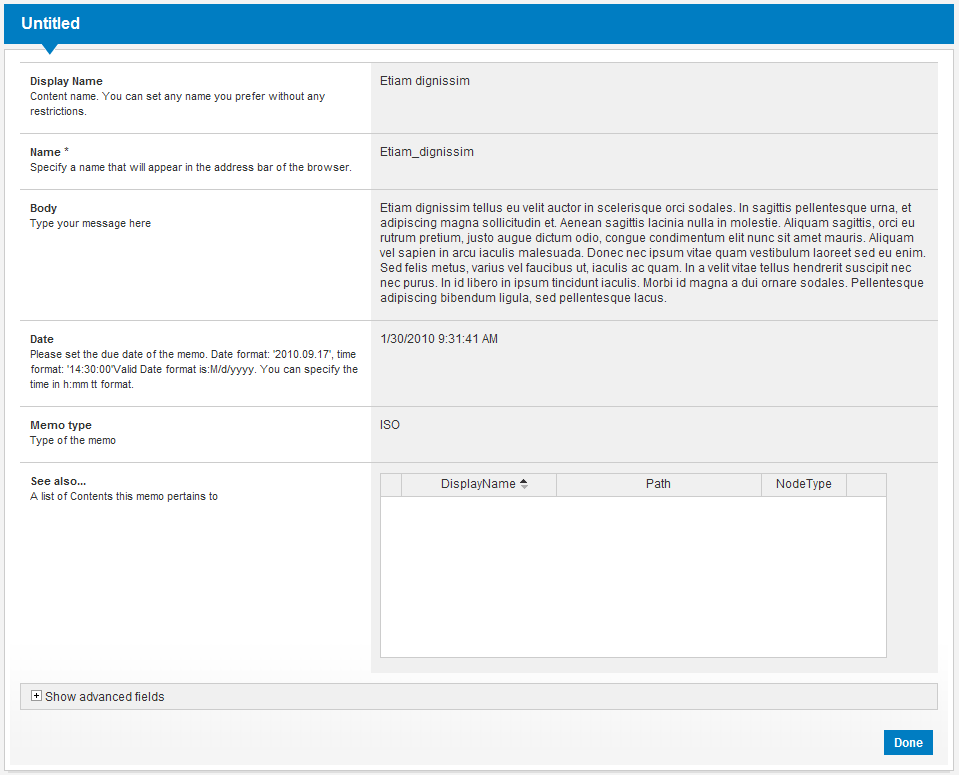
Displaying a content on a page is one of the most common tasks in Sense/Net ECMS. In this article we provide a simple two-step method to achieve this. Usually you have to create a Content View or XSLT Renderer to render the content on the page (if the built-in default view is not enough or there is no appropriate custom view created already) then place a Portlet on a page that displays the content. This article is about displaying content using either one of the following portlets:
|
Steps
Create the content view
First you’ll need a view to display the content. If there is no predefined view that you can use and the built-in generic view does not fulfill your needs, please check one of the following articles on how to create a custom view.
For evaluation purposes you may skip this step as the system provides a default view for every content.
Steps for the Single content Portlet
1. Add a portlet page
If no page exists where you want to display one or more content, follow the steps in this article to add a page.
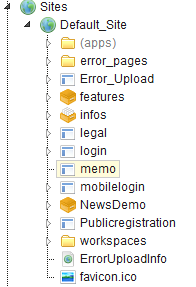
In this demo we will create a portlet page for displaying a Memo. The page will reside in the root of the default site:
- /Root/Sites/Default_Site/memo
Create the memo portlet page and set its page template to the following:
- /Root/Global/pagetemplates/sn-layout-dialog.html
2. Add a Single content Portlet
In Sense/Net ECMS the building blocks that users see on pages are called portlets. To learn how can you add a portlet to a page, follow the steps in this article.
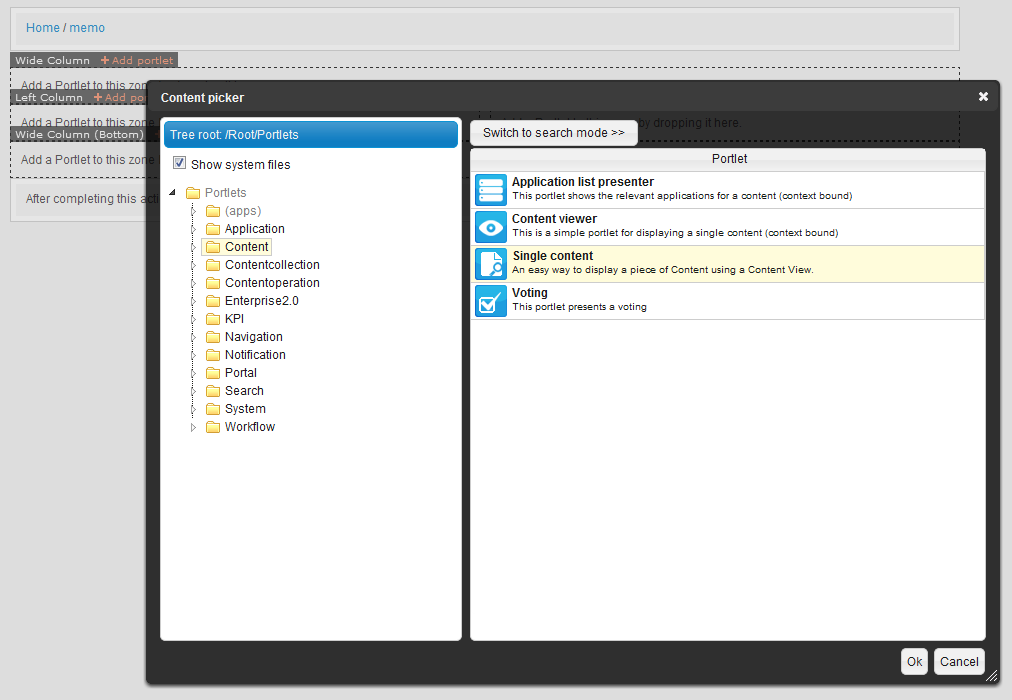
In our case you need to navigate to the previously created page (http://localhost/memo  ). The page will contain only a header and a footer. The following image shows how can you add the Single content Portlet to the page after switching it to Edit mode using the PRC.
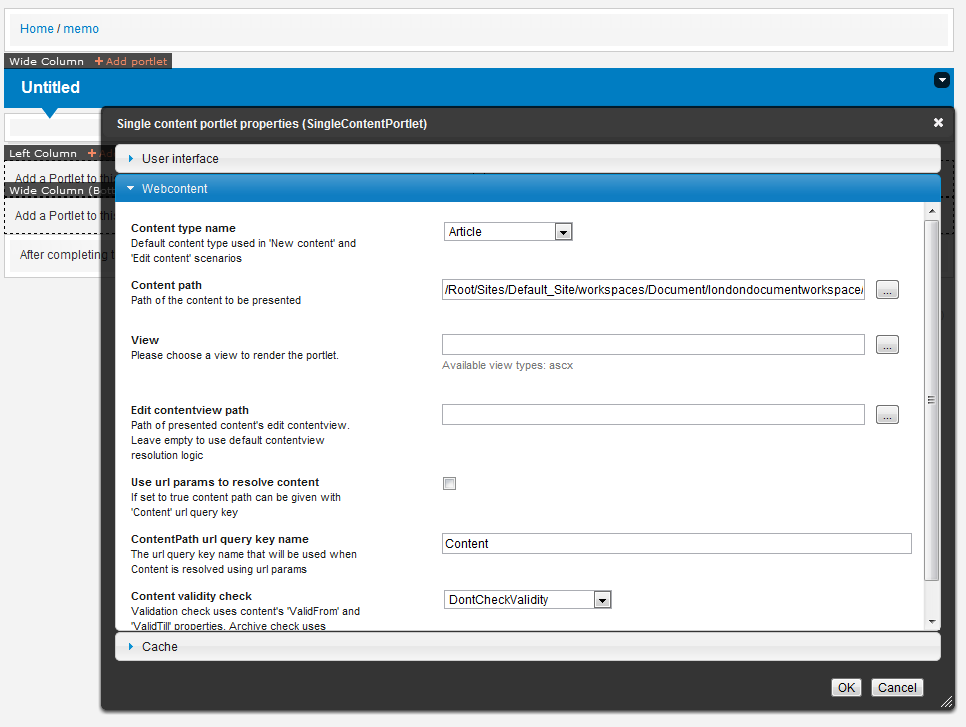
For evaluation purposes you only have to set the Content path property of the portlet. It will display the memo content automatically. You may choose any Memo content under one of the workspaces.
- Content path: /Root/Sites/Default_Site/workspaces/Document/londondocumentworkspace/Memos/Etiam_dignissim
Please note that you have to check in the page using the PRC after any modification to take effect.
3. Display content using a custom view
Single content Portlet can be used for displaying content automatically with the default view. But if you have a custom content view or XSLT renderer you can set that in the portlet properties window.
Open the portlet properties dialog and set the following properties:
- Choose the custom view you created as the View.
Steps for the Content viewer Portlet
1. Add an application page
In this demo we will create an application page for displaying a Memo. The page will reside in the following folder:
- /Root/Sites/Default_Site/workspaces/(apps)/Memo
Create the Memo folder and a portlet page here called Browse and set its page template to the following:
- /Root/Global/pagetemplates/sn-layout-dialog.html
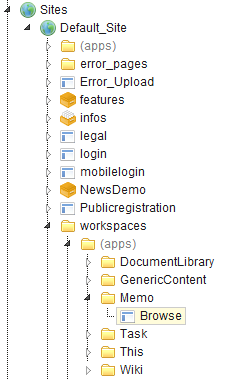
For more about creating pages see the following article: How to create a simple Portlet Page.
2. Add a Content Viewer portlet
In Sense/Net ECMS the building blocks that users see on pages are called portlets. To learn how can you add a portlet to a page, follow the steps in this article.
In our case you need to navigate to the page in Content Explorer and hit the Browse button to switch to browse mode. The page will contain only a header and a footer. The following image shows how can you add the Content viewer Portlet to the page.
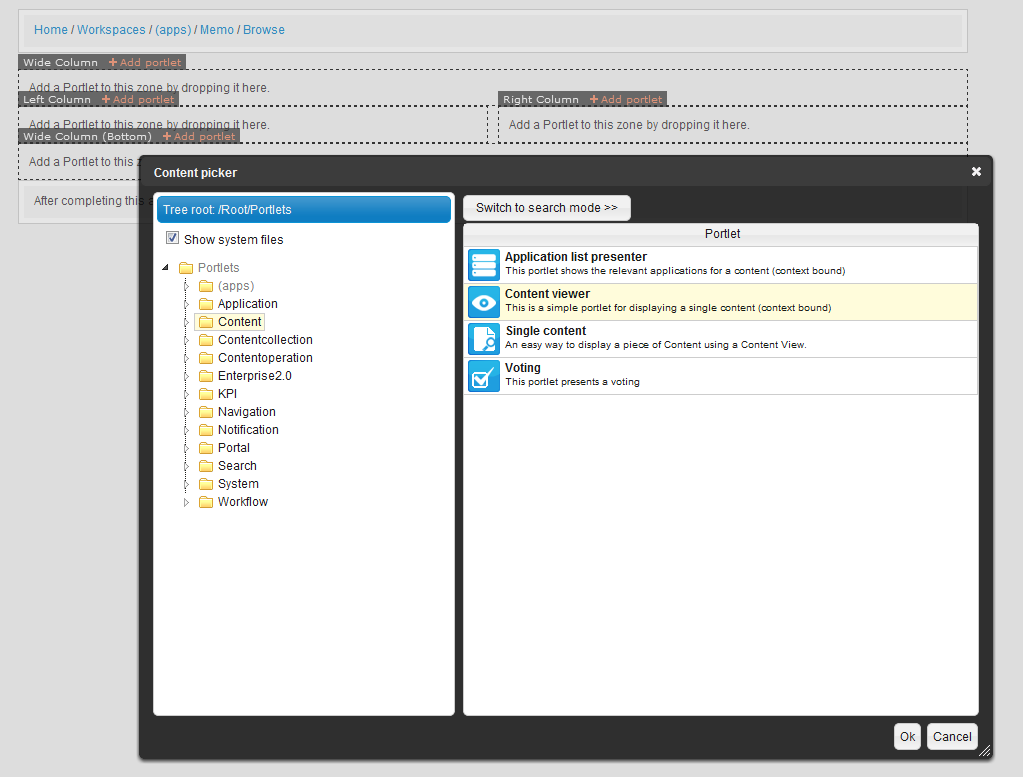
For evaluation purposes you do not have to change any property of the portlet, it will display any content of memo type automatically.
3. Test the created page and portlet
After this you may navigate to one of the memo content under any workspace. For example visit the following link:
If you open the PRC on this page and hover the mouse over the Jump to application button you should see a target URL as at the bottom of the following image (it refers to the Browse page we created before):
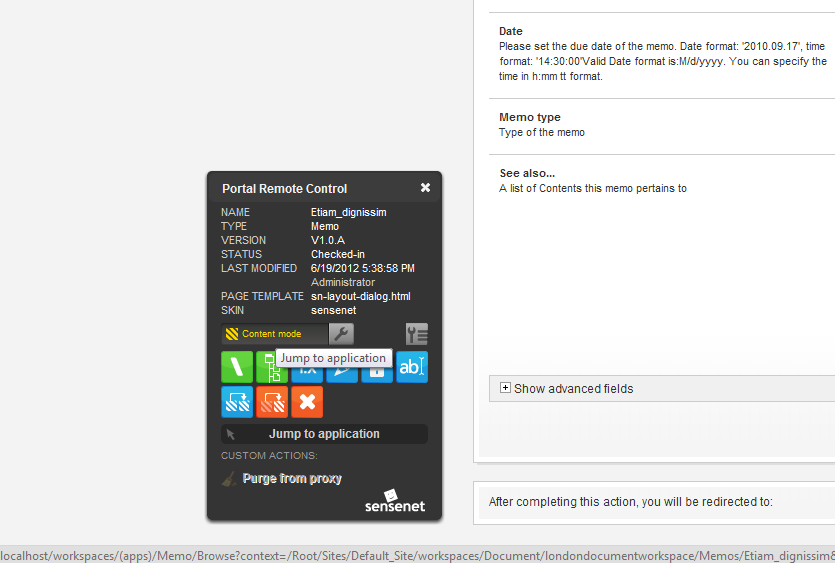
So basically we have created an application page with a Content viewer portlet on it that is able to display every Memo content that is placed under the specific workspace. To read more about this concept go to Smart Application Model. The Content Viewer portlet we used always displays the Memo content that we browse, this is because we've left the context binding portlet properties to use the default values, which is displaying the current context. To learn more about context binding please check the following article: Smart Pages
4. Display content using a custom view
Content viewer Portlet can be used for displaying content automatically with the default view. But if you have a custom content view or XSLT renderer you can set that in the portlet properties window.
Open the portlet properties dialog and set the following properties:
- Choose the custom view you created as the View.
Related links
- Content View
- XSLT Renderer
- Content viewer Portlet
- Single content Portlet
- Portlet
- Content Type
- Smart Pages
- Smart Application Model
- How to create a simple Portlet Page
- How to add a portlet to a page
References
There are no external references for this article.
