How to group items in a List View
- 100%
- 6.0
- Enterprise
- Community
Planned
Overview
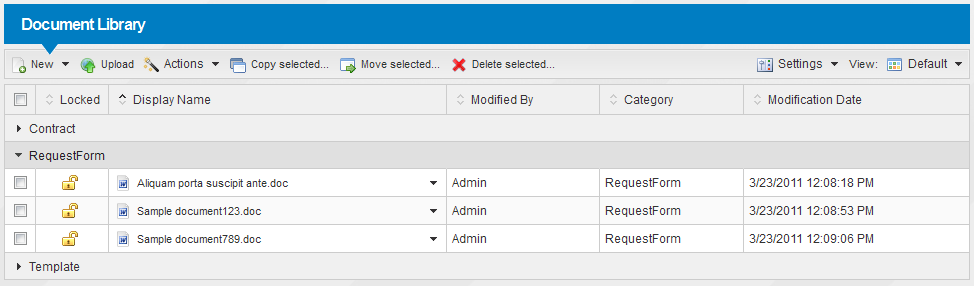
In Sense/Net there is a possibility to display the items in a Content List grouped by one of the fields. It means items with the same field values will be displayed below each other in a group. The groups are collapsed by default and can be opened separately by clicking the header that displays the value of the group by field.
Steps
In this section I will show you how to modify a content list view to display items grouped by a certain field step-by-step.
We assume that you have a field (e.g. a Choice Field named Category) on the list and there are enough items in the list filled with values to be able to see the result of the group by setting.
1. Edit content list view
To modify a content list view you have to go to the Edit views page for the content list. To achieve this you have to select the Manage views menu item from the Settings menu in the header of the particular Document Library.
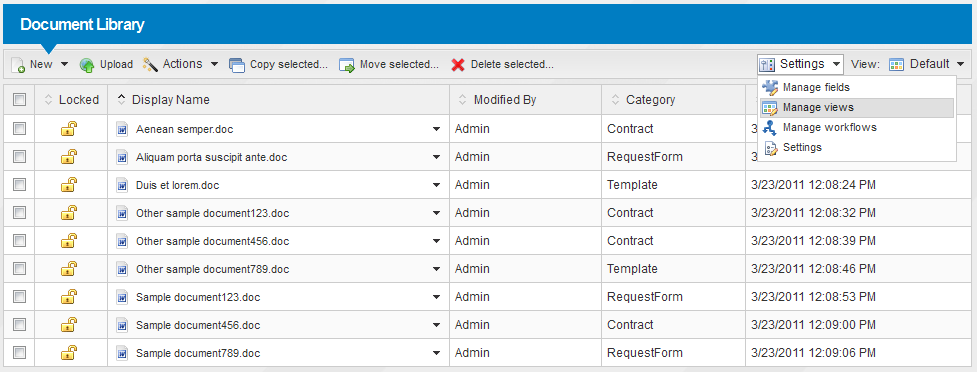
Select the Edit properties action from the action menu of the selected content list view. In our case we well modify the Default view to see the results immediately.
2. Select the field for grouping
On the Edit page of the Default view you can choose one of the fields to use as a group setting. In our example we will select the Category field.
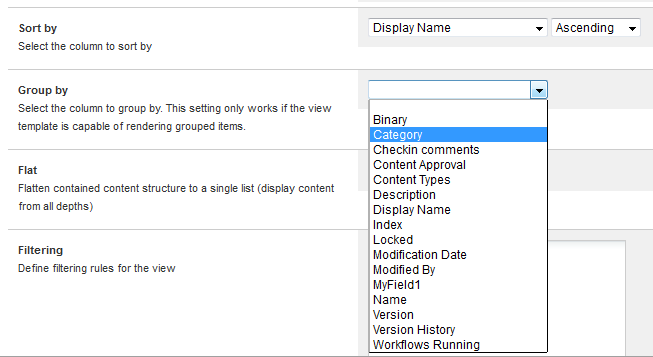
After saving the view you are returned to the view folder. Press the Done button here to return to the library.
3. Review the result
As you can see on the following image the groups are created and can be opened by clicking on the appropriate header.
Customizing grouping
The how-to above showed how to display items in groups in a content list. In addition to this, the default behavior and appereance of the portal can be customized by creating a custom renderer for content list views. See the details on the following page:
