How to install Sense/Net from source package (IIS 6.0)
Installing Sense/Net on IIS6 is not supported from Sense/Net version 6.1
- 100%
- 6.0
- Enterprise
- Community
Planned
Contents |
Overview
In this document we would like to guide you through the installation process of Sense/Net. We hope that you will encounter no complications during installation, or later on while working with Sense/Net. If you come across a bug by any chance, or have questions concerning our product, feel free to contact us at our forum.
This document describes the steps of installing SenseNet 6.0 on machines with IIS 6.0.
In case you use IIS 7.0 or IIS 7.5, please read the following howto: How to install Sense/Net from source package (IIS 7.5 and IIS 7.0)
Steps
1. Download Sense/Net
Download the Sense/Net source package. The latest version of this package is available on our CodePlex page.
2. Extract the package
Extract the package to a folder of your choice, we will refer to this location as sourceroot later on.
3. Configure IIS
1. Start IIS Manager
Start the Internet Information Services (IIS) Manager (Control Panel/Administration tools)
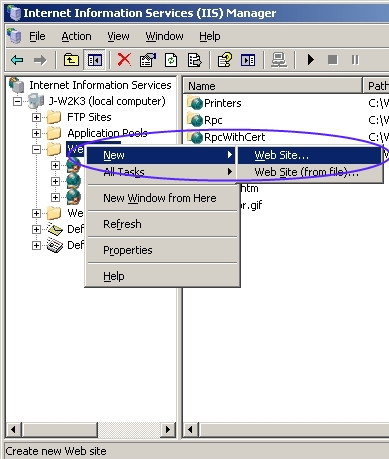
2. Right click Web Sites folder, select New Web Site...
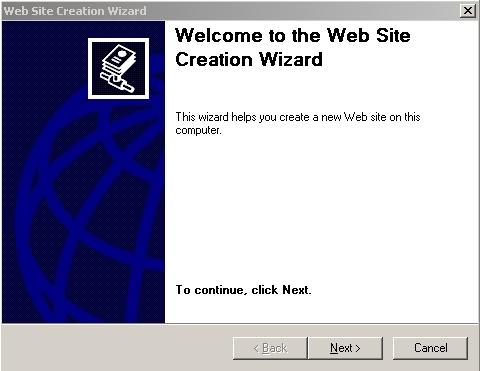
3. Next
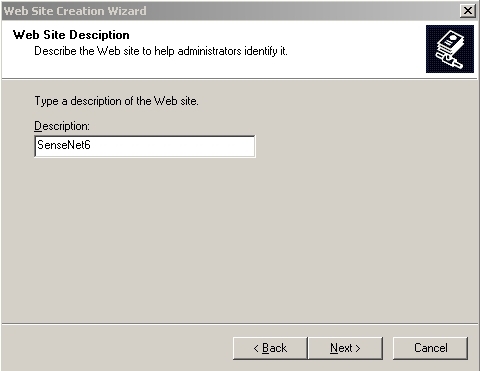
4. Add name of your web site,next->
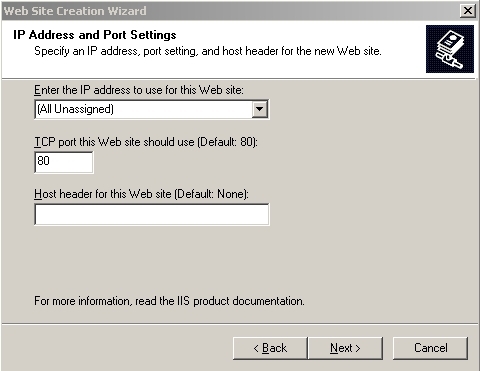
5. Next
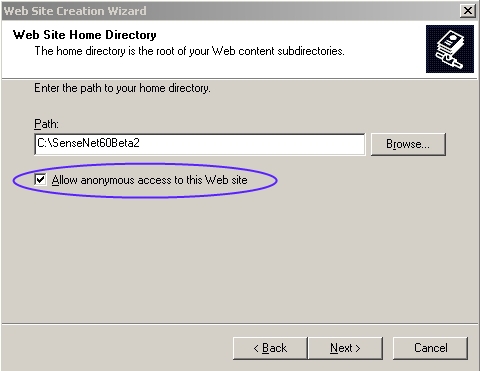
5. Set your Physical path to: %sourceroot%\Source\SenseNet\WebSite, and allow anonymous acces,next->
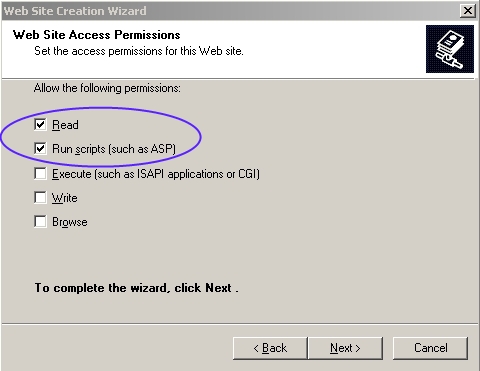
6. Check in read and Run scripts , next ->
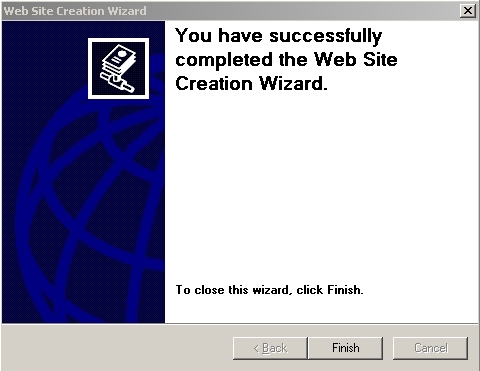
7. Finish
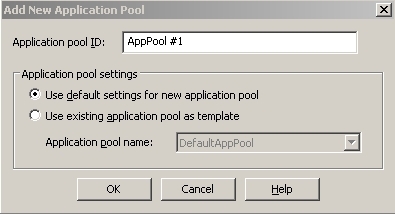
8. Right Click on the Application Pools, select New Application Pool.
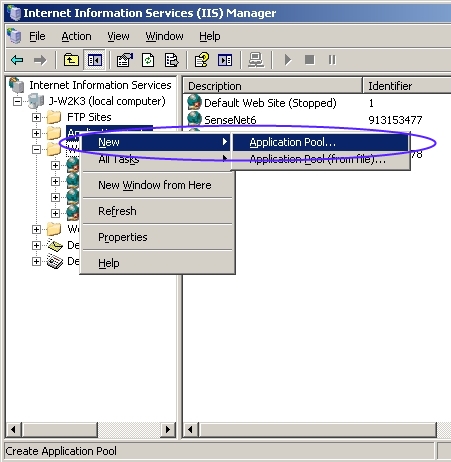
9. Application pool ID: SenseNet APP, click OK.
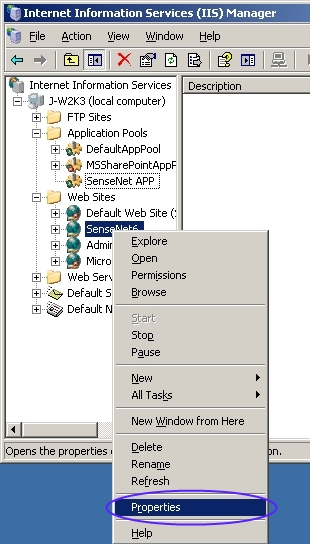
10. Now right click on your web site (SenseNet6) in Web Sites folder, and select Properties
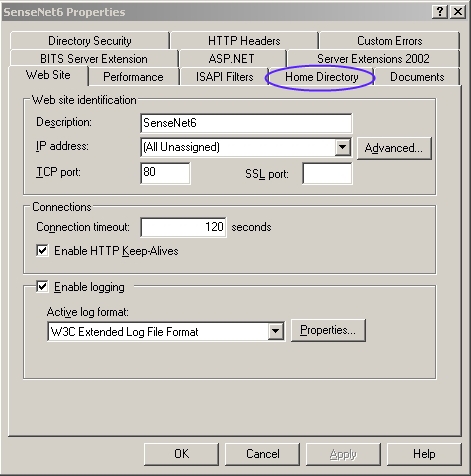
11. Select Home Directory tab.
12. Set the Application pool to SenseNet APP.
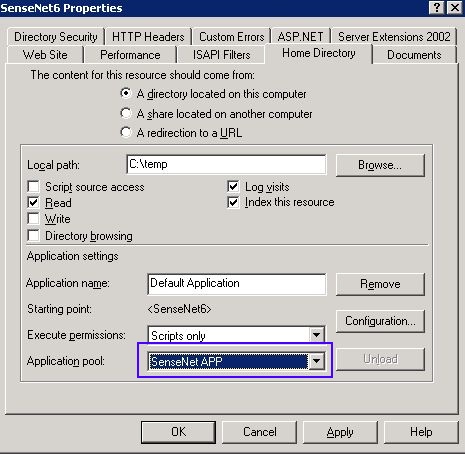
13. Click Configuration button.
14. Click Insert Button in the window that popped up.
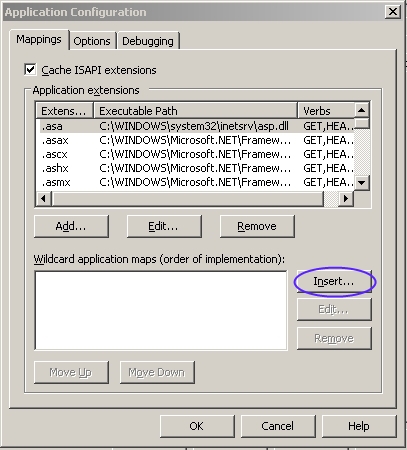
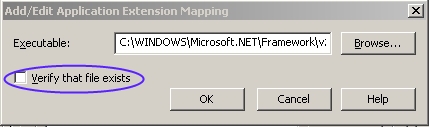
15. Give the "aspnet_isapi.dll" file path in Executable textbox (eg.:C:\WINDOWS\Microsoft.NET\Framework\v2.0.50727\aspnet_isapi.dll)
16. Uncheck "Verify that File exits" , and click OK.
Make sure you use the right path (this path can be different in different systems)
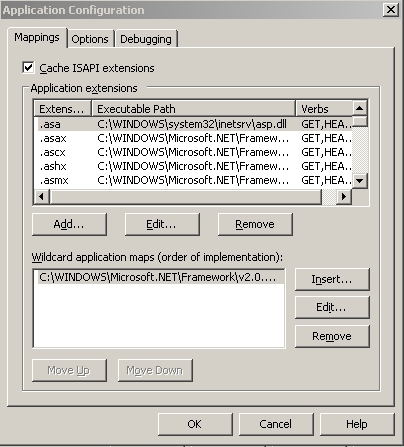
17. Click OK again.
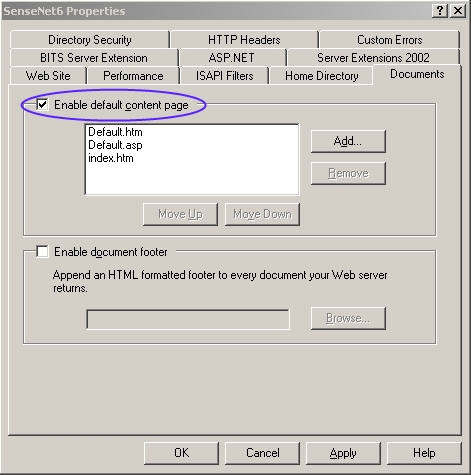
18. Go to Documents tab, and uncheck "Enable default content page"
19. Go to ASP.NET tab, check "ASP.NET version" (set 2.0..., if other is chosen)
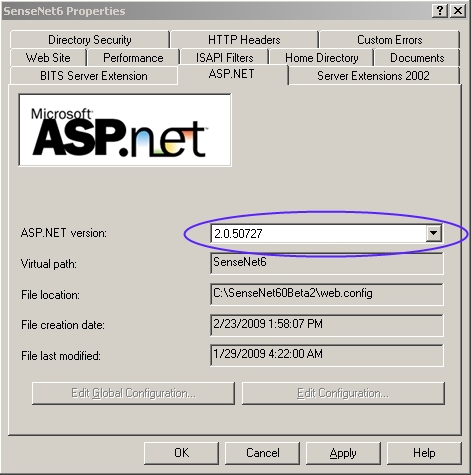
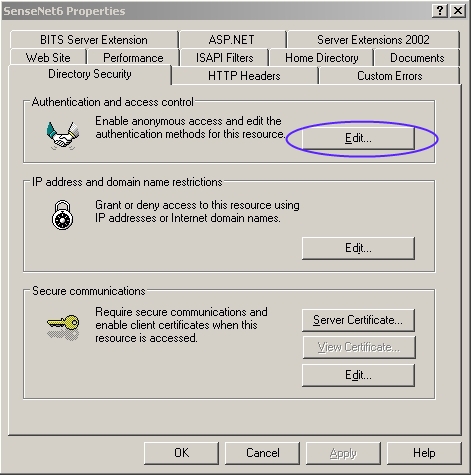
20. Go to Directory Security tab, click Edit button in Authentication and acces control area.
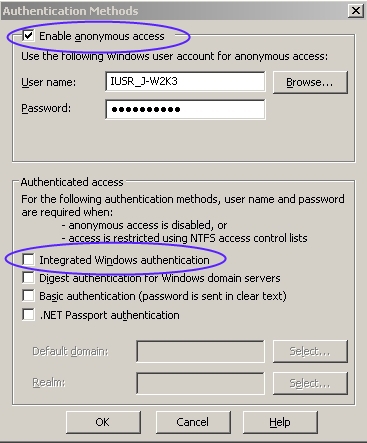
21. Check in Enable anonymous acces, and uncheck Integrated Windows authentication. Click OK.
22. Click Ok again.
23. Select your web site (SenseNet6), right click on Upload folder, and select properties.
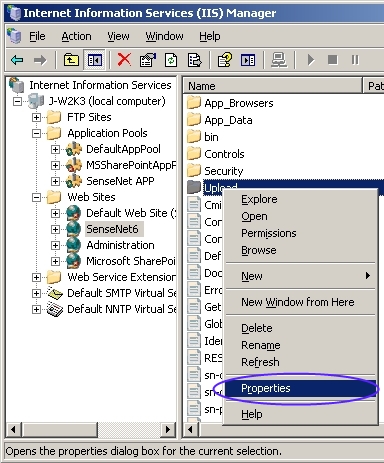
24. Check in Write, click OK.
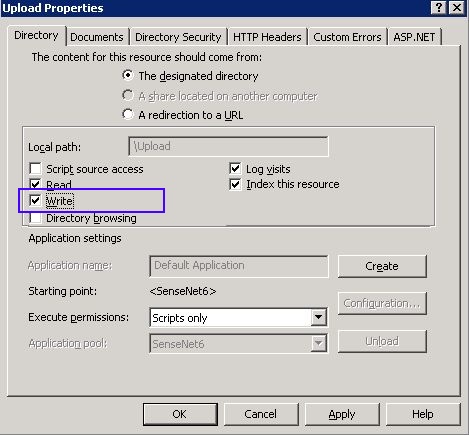
25. You are finished with IIS 6.0.
4. Set up database connection
The easiest way to set up database connection is creating an Alias in your SQL Server Configuration Manager.
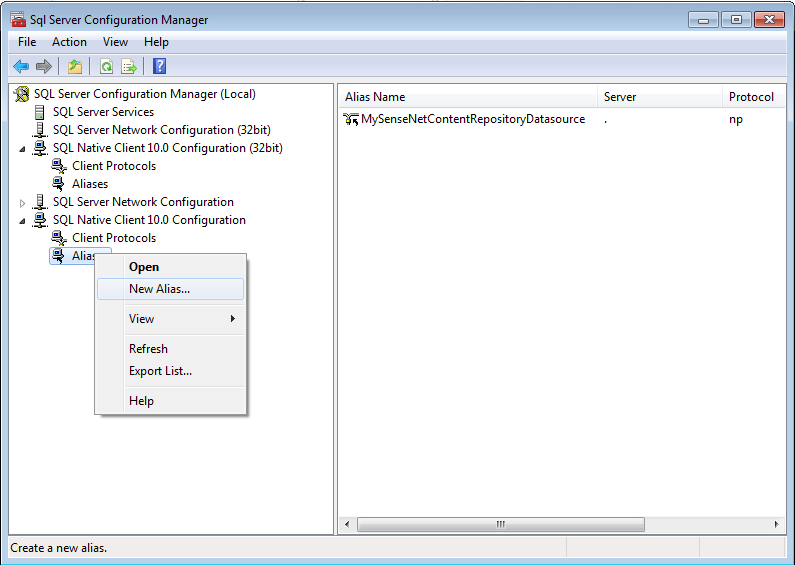
4.1. Open SQL Server Configuration Manager
4.2. Right Click on Aliases, then select New Alias
4.3. Set up the new Alias
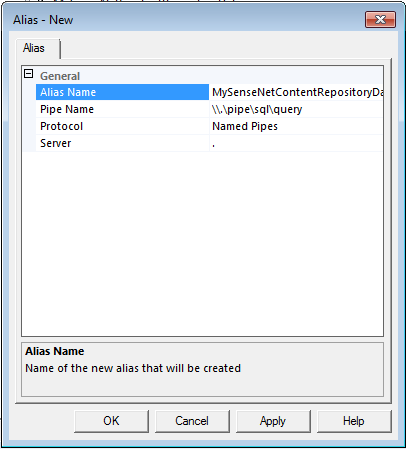
Use the values from the following table (you have to replace DB_SERVER_NAME to the name of your sql server instance)
| Property name | Property value |
|---|---|
| Alias | MySenseNetContentRepositoryDatasource |
| Protocol | Named Pipes |
| Server | DB_SERVER_NAME |
5. Open the solution
To open your solution in Visual Studio there must be a running IIS Site, which is configured to %sourceroot%\Source\SenseNet\WebSite.
Open %sourceroot%\Source\SenseNet\SenseNet.sln in Visual Studio 2008
6. Rebuild the entire solution
Rebuild the entire solution
7. Run install script
To run this script you need to have administrative rights for the SQL Server instance.
Run the install script: %sourceroot%\Deployment\InstallSenseNet.bat
8. Set up permissions
The identity of the application pool running the site must be (at least) the dbowner of SenseNetContentRepository database. (Hint: if your app pool is running in the name of ApplicationPoolIdentity you may create a new login for IIS APPPOOL\<application pool name> in Microsoft SQL Server Management Studio (don't search for this user, just type it in) and grant db_owner permissions).
9. Installation finished
You can browse your application on http://localhost  .
.
Video
Related links
How to install Sense/Net from web deployment package (IIS 7.5 and IIS 7.0)
How to install Sense/Net from source package (IIS 7.5 and IIS 7.0)
How to install Sense/Net from web deployment package (IIS 6.0)
