How to start a content workflow
- 100%
- 6.0
- Enterprise
- Community
Planned
Overview
In Sense/Net there are two different types of workflows: Content workflows and Standalone workflows (for more information please check the Workflow types article.). Content workflows can be assigned to a content list and started on a content (for example a Word document). On this page you can learn how to start a workflow on a content if the workflow is already assigned to the Content List.
See the Workflow page for detailed information on creating and managing workflows.
Steps
In this section I will show you how to start a workflow on one content step-by-step. You can start a content workflow only in a Content List. In this case we go to one of the sample Document Libraries and start an Approval workflow.
1. Displaying the Workflows page
You have to select the Workflows menu item from the action menu of a document to see the available workflows related to that particular document. Available workflows are the workflows that the administrator assigned to the Document Library.
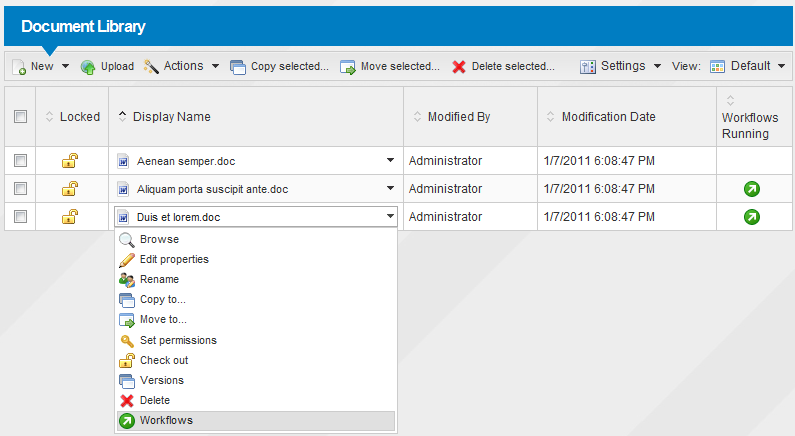
2. Start the workflow
On this page you can review the available workflows (left panel) and the currently running workflows on this document (right panel).
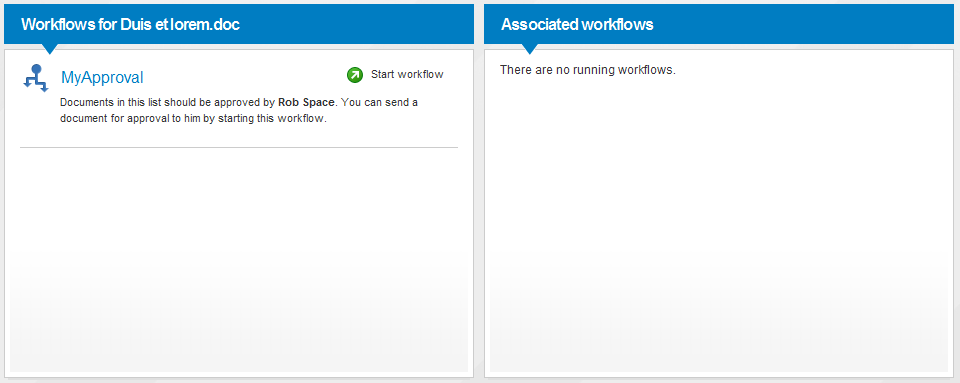
If you click the Start workflow link next to one of the available workflows, it will lead you to a page that displays the initial parameters of the workflow. If you click on the Start button, the workflow will start immediately and you will be redirected back to the Document Library.
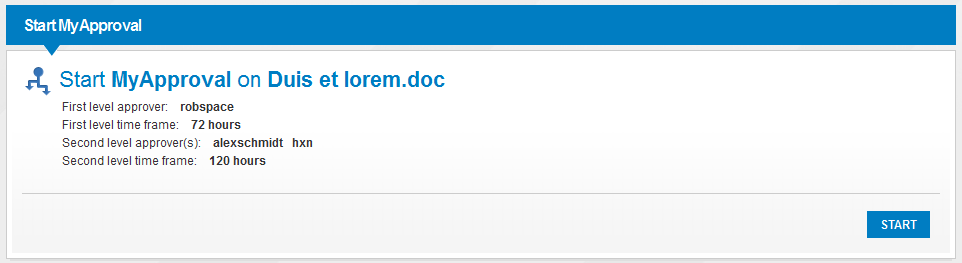
If the current content list view contains the running workflows column, you can see the icon stating that a workflow is running on the document.
