Forgotten password
- 100%
- 6.3
- Enterprise
- Community
Planned
Overview
The Forgotten password workflow lets users request an email with a token that lets them change their password without remembering the old one. On this page you can learn the steps of the process and the participating users and business entities.
For more information about workflows please check the main Workflow article.
Details
The Forgotten password is a simple standalone workflow that is used by users who forgot their password and want to provide a new one. This feature is implemented using a workflow because it is highly customizable and lets portal builders or developers inject additional elements - e.g. logging or notifying administrators - to the feature.
The following sections explain what happens when a user has clicked on the Forgot your password? link in the login box. For more info on how to start standalone workflows, please visit this article.
1. Start the process
When users forgot their password and need to provide a new one, they can visit the forgotten password page (accessible from the login box):

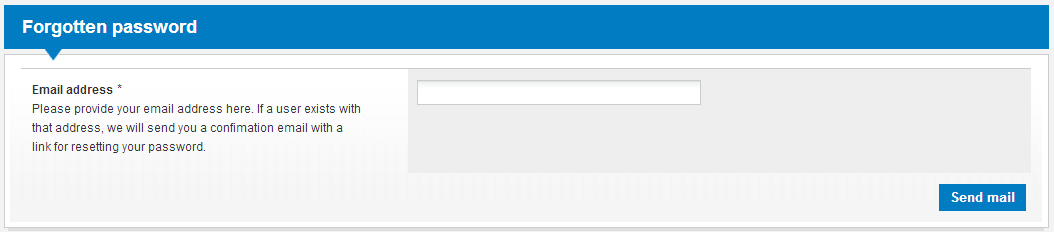
On this page a form is displayed (by the Workflow start Portlet) and when the user provides her email and clicks on the Send mail button, the process starts. If the provided email is not formatted correctly or does not exist in the system, she will receive an error message. If the user was found, the following happens:
- A Forgotten password workflow starts in the background.
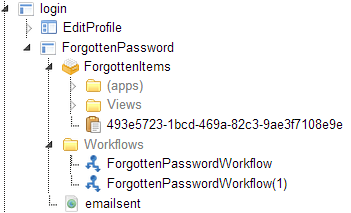
- A list item is created (with a unique identifier as a name) that contains the email address of the user. The target folder is defined in the workflow.
- The user receives an email with a link pointing to the list item above.
2. Change password page
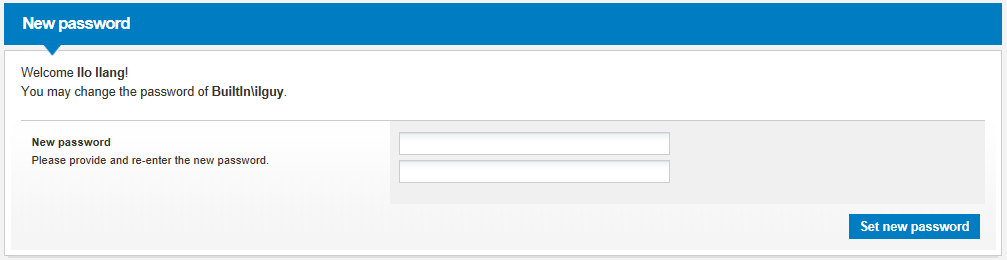
When the user clicks on the link in the email (that was sent in the previous step) he/she will be directed to the unique item on the portal. On that page he/she will be able to provide a new password. As the identifier is unique and complex, nobody will be able to change others' password, without having the identifier.
There is an expiration period for these items. By default users has to change their password in 1 day - otherwise they have to ask for a new token.
3. Change password and cleanup
After the user provided a new password, he/she will be logged in automatically to the portal and will be redirected to the home page. In the background, the workflow will be set to completed and the list item with the unique identifier will be deleted permanently.
Customizing the feature
Content views
The process uses two content views that you can freely change, even the few lines of programmatic logic in the views:
- /Root/Global/contentviews/ForgottenPasswordWorkflow/InlineNew.ascx: this is the first view that is presented by the Workflow start Portlet.
- /Root/Global/contentviews/CustomListItem/NewPassword.ascx: this is what the user sees when clicks the link in the email he received.
String resources
The feature displays localized texts that can be customized in the following resource files:
- /Root/Localization/CtdResourcesEF.xml: Forgotten workflow related texts.
- /Root/Localization/Workflow.xml: GUI related texts, used in the content views.
The workflow
The process above is conducted by the following built-in workflow:
- /Root/System/Workflows/ForgottenPasswordWorkflow.xaml
If the user has not provided a new password using the identifier list item, the item will be deleted after a period of time - which is 7 days by default.
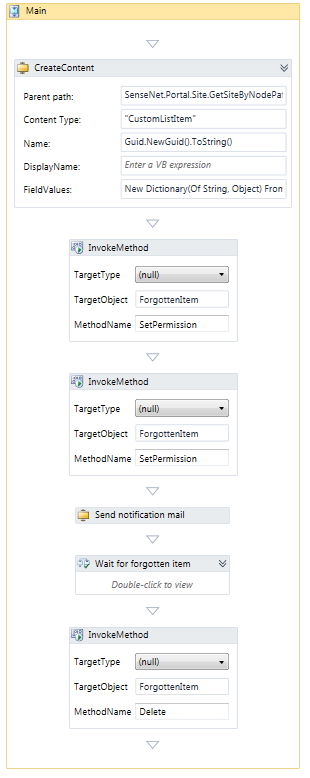
Any aspect of the workflow may be changed - e.g. the target folders or types - and there is a possibility to insert new activities - e.g. logging or notifying administrators.
Example/Tutorials
Related links
References
There are no external references for this article.
