Content Explorer
From Sense/Net Wiki
- 100%
- 6.0
- Enterprise
- Community
Planned
Overview
The Content Explorer is the main administrative surface of Sense/Net. Here you can manage all content in one, simple and quick user interface. All operations on all content are accessible here in a uniform way. The Content Explorer reflects the physical content repository structure. Some features of Sense/Net (e.g. adding new users, groups, page templates, skins, etc) are available only through the Content Explorer. If you are a power user, you will spend most of your time in the Content Explorer. It is your ultimate content management tool.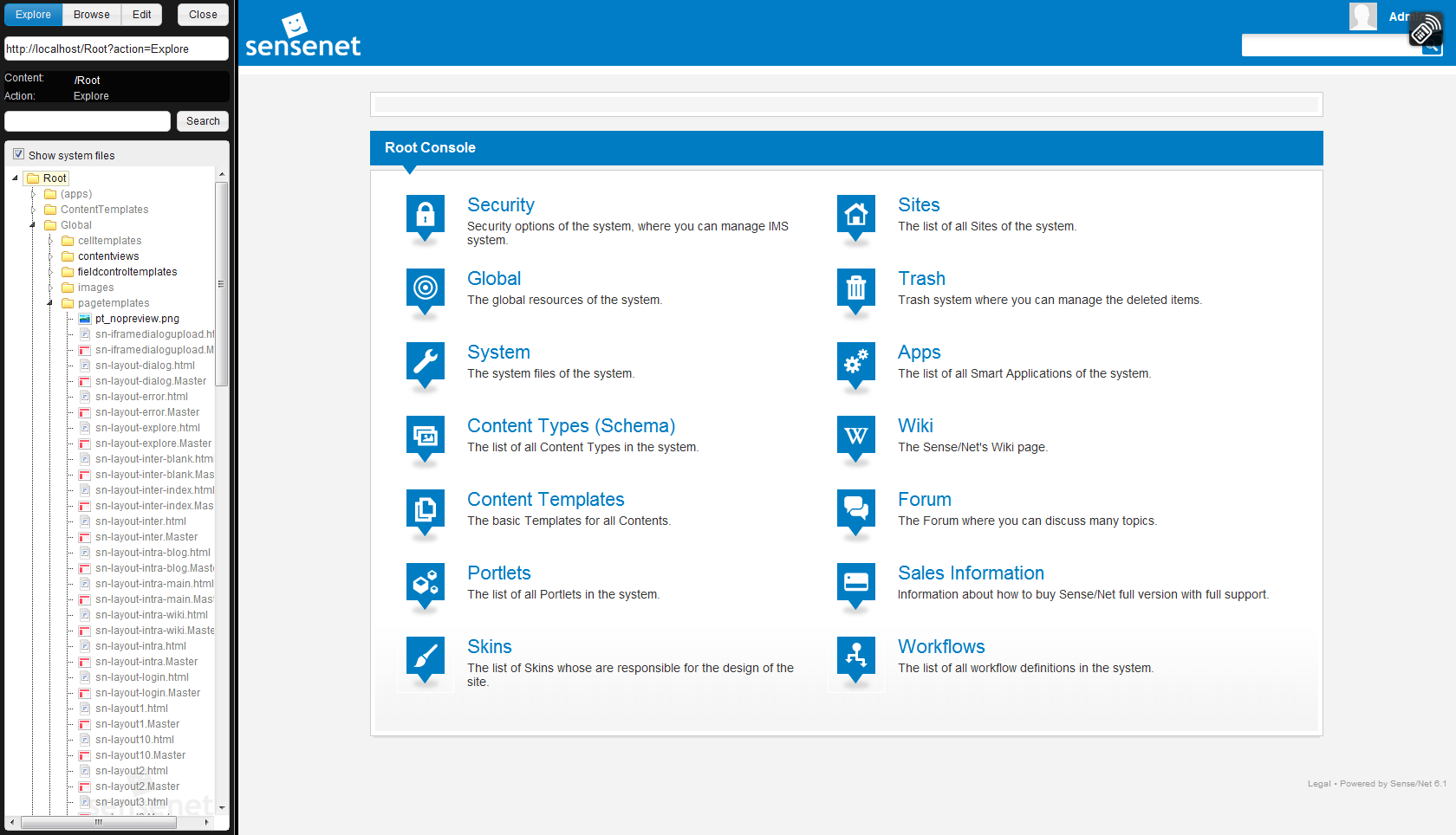
Details
How to access Content Explorer
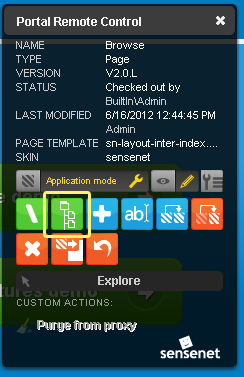
You can go to Content Explorer from the Portal Remote Control or in Workspaces from the Workspace actions menu.
How to use the UI of Content Explorer
The user interface provides a simple tree on the left side that shows all content in a hierarchical tree. This tree is the representation of the content repository, that is the storage layer containing all content in a tree. On the right side you can see the actual content you selected on the left.
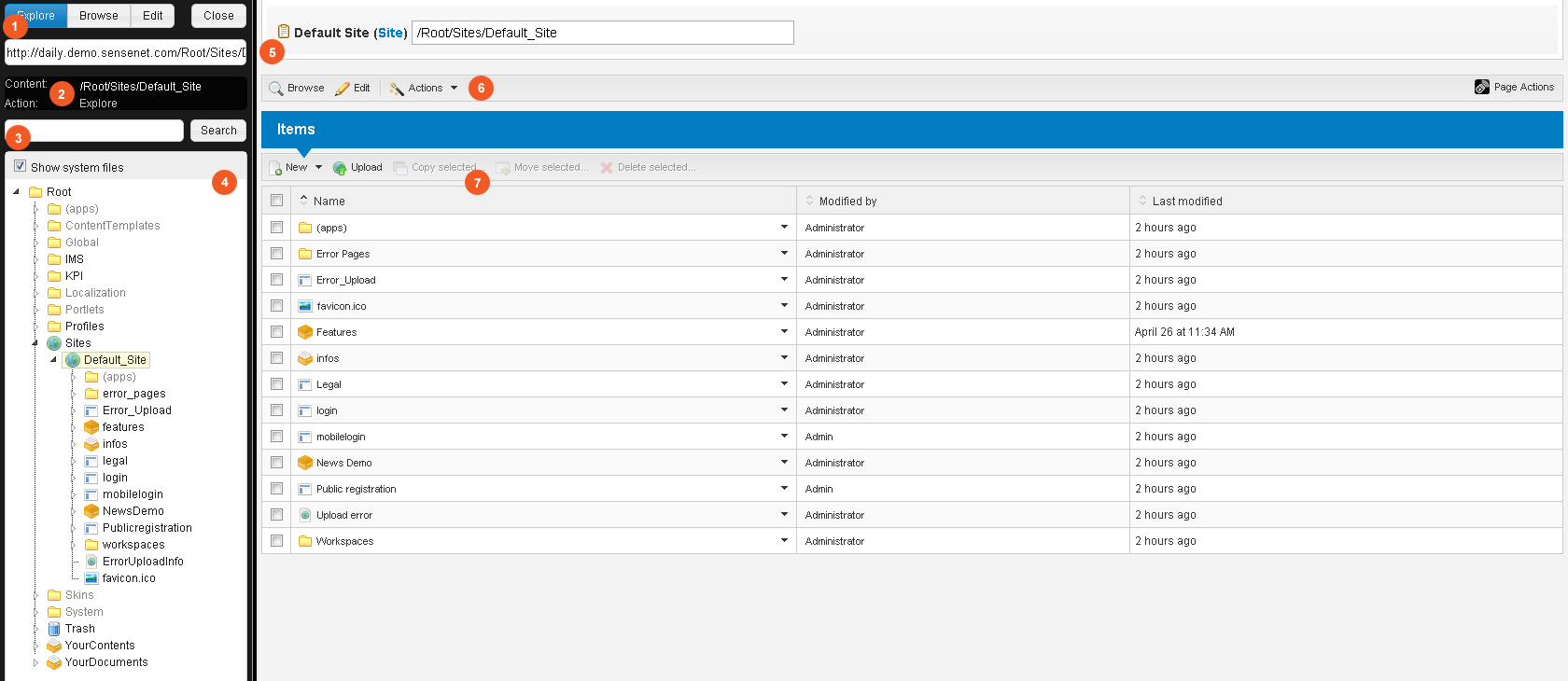
- 1. Content Explorer operation modes:
- Explore - The default mode. On the right side you can see the main properties of the selected content, its children and its actions.
- Browse - On the right side you can see the selected content how the end users see it.
- Edit - On the right side you can edit the selected content immediately.
- 2. Selected content's path and action
- 3. Search box
- Searches in content under the selected content
- You can see the details of the query syntax on this wiki page
- 4. Tree
- Show system files check box - hides or shows system folders and files.
- In the tree selected content is highlighted.
- Content name is shown (not display name).
- All content are displayed not only containers.
- 5. Selected content's icon, display name, content type and path.
- 6. Selected content's toolbar
- Selected content's actions
- Portal Remote Control
- 7. List of child items of the selected content
- Toolbar of child items
What you can do
- Create, upload, modify, delete, copy, move content
- Set permissions
- Manage users
- Synchronize portlets
- Create and manage skins, page templates, views
- Create and manage content templates (e.g.: workspace templates)
- Manage content types
- Create and manage sites
Example/Tutorials
Related links
- Content repository
- Query syntax
- Content naming
- Permission System
- User Accounts as Content
- Portlet
- The Skin System
- Page Template
- Content View
- Content Template
- Content Type
- Site Content Type
References
There are no external references for this article.
